Quick answer: Error Code Bee in Destiny 2 is a network disconnection error — it means your game lost its connection to Bungie's servers, almost always because of an issue between your home network and Bungie (packet loss, WiFi instability, ISP congestion, or another device hogging bandwidth). It is not a ban and you won't lose progress. Fix it in this order: switch to a wired Ethernet connection, power-cycle your modem/router, clear your console or Steam cache, stop other devices from streaming/downloading, and if it persists, enable UPnP or port-forward Destiny 2's ports. Most Guardians clear Bee with a wired connection plus a router reboot.
Few things kill a raid run faster than getting yeeted to orbit by Error Code: Bee mid-encounter. It's one of Destiny 2's most common connection errors, it shows up across PC, PlayStation, and Xbox, and Bungie's own help page is honest that it can be frustrating to chase down. The good news: Bee is a network error, not an account or server-ban error, so the fixes are things you can control. This guide breaks down exactly what Bee means, what actually causes it, and the 9 fixes that work — ordered fastest-and-most-effective first — so you can stop getting booted and get back to the grind.
Destiny 2 - Dungeon Boost
Get dungeon boost in 10 minutes
What Is Error Code Bee in Destiny 2?
Error Code Bee is part of Destiny 2's animal-themed connection error family — the same group as Weasel, Beaver, Anteater, Buffalo, and Marionberry. When you see Bee, your client has lost its connection to Bungie's servers and the game drops you back to orbit, the title screen, or sometimes straight to the error screen.
The key thing to understand: Bee points to a problem between your network and Bungie, not a problem with your Destiny account. You are not banned, your characters are safe, and any loot or progress that was actually saved server-side stays put. The cost is the interruption itself — a lost Trials card, a wiped raid checkpoint, or a failed solo flawless attempt because you got disconnected at the worst possible moment.
It's worth knowing that as of Update 9.7.0 "Monument of Triumph" (June 9, 2026), Destiny 2 has entered maintenance mode — the servers stay online and every activity remains playable, but there are no new seasons rolling out. That matters here because Bee is not caused by some "new season server overload": when you get it, the cause is almost always on your side of the connection, which is exactly why the player-side fixes below are so effective.
What Causes Error Code Bee?
Per Bungie's official help documentation, Bee is a general-disconnection error with several common root causes:
"BEE error codes can be caused by general disconnections between you and the routes your traffic takes across the internet to get to Bungie, including packet loss or disconnections between your home network and Bungie such as ISP saturation or general internet congestion." — Bungie Help, Error Code: BEE
Breaking that down, the usual culprits are:
- WiFi instability — weak signal, interference, or distance from the router. Bungie explicitly flags WiFi setups as a common trigger.
- Packet loss / ISP congestion — your traffic dropping somewhere between your home and Bungie's servers, often during peak evening hours.
- Bandwidth contention — another device or app on your network claiming bandwidth: a 4K stream, a game download, a cloud backup, or someone else file-sharing.
- Router / NAT issues — strict NAT type, an overloaded router, or settings that block Destiny's traffic.
- Faulty in-home wiring or hardware — bad Ethernet cables, a failing router, or noisy lines that cause intermittent drops.
Bungie is also blunt that some Bee cases come down to physical infrastructure ("faulty in-home wiring, or other issues that require on-site support") — meaning a small minority of cases are genuinely an ISP/hardware problem rather than a settings tweak. For the vast majority of players, though, the fixes below resolve it.
How Do You Fix Error Code Bee in Destiny 2?
Work through these in order. The first four resolve most cases on their own; the later ones target stubborn, repeat-offender Bee.
1. Switch to a wired Ethernet connection
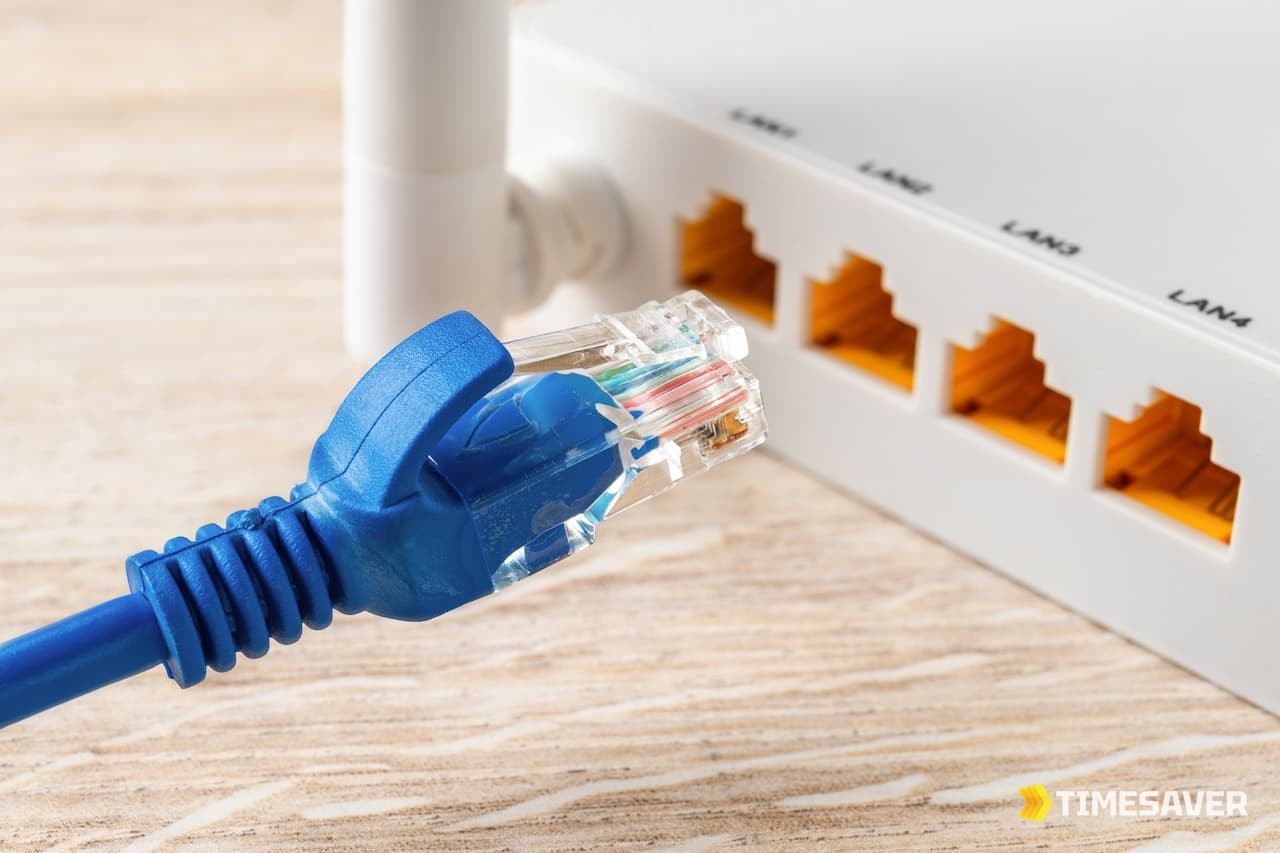
This is Bungie's single biggest recommendation and the most impactful fix. WiFi is convenient but introduces signal-strength and stability problems that directly cause Bee. Plug an Ethernet cable straight from your console or PC into your router. If a cable run isn't possible, a MoCA adapter (Ethernet over coax) or a quality powerline adapter beats WiFi for stability. Bungie strongly recommends a wired connection because WiFi connections can lead to signal-strength and stability issues — and in practice, going wired clears Bee for a huge share of players on its own.
2. Power-cycle your modem and router
A full reboot clears the connection table and re-establishes a clean route to Bungie:
- Fully power off your modem and router (unplug them from the wall).
- Wait 60 seconds so the connection state and capacitors fully clear.
- Power the modem back on first; wait for it to fully sync.
- Power the router back on; wait for all lights to stabilize.
- Relaunch Destiny 2.
If you only ever do one thing besides going wired, do this.
3. Clear your console or Steam download cache
A corrupted local cache can cause repeated disconnects:
- PlayStation 5/4: Fully power down (hold the power button until it beeps twice), unplug for 30–60 seconds, then restart. On PS4 you can also rebuild the database in Safe Mode.
| - **Xbox Series X | S / One:** Hold the console's power button for ~10 seconds to fully shut down, unplug the power brick for 30 seconds, then restart to clear the cache. |
|---|
- PC (Steam): Steam → Settings → Downloads → Clear Download Cache. You can also Verify integrity of game files in Destiny 2's Properties → Installed Files.
4. Stop other devices from hogging bandwidth
Because Bee is frequently a bandwidth-contention error, close anything competing for your connection while you play: pause game/OS downloads, stop 4K video streams on other devices, and avoid large uploads or file-sharing on the network. If your household is heavy on simultaneous streaming, that alone can produce the packet loss that triggers Bee.
5. Enable UPnP on your router
UPnP lets your console or PC automatically open the connections Destiny needs. Bungie recommends UPnP as the simplest way to ensure a good connection. Log into your router (typically `192.168.1.1` or `192.168.0.1`), find UPnP (usually under NAT, Forwarding, or Advanced), and enable it. Reboot the router afterward. Important: do not run UPnP and manual port forwarding at the same time — pick one.
6. Port-forward Destiny 2 (if UPnP isn't an option)
If UPnP isn't available or doesn't help, manually forward Destiny 2's ports to your device's local IP. Bungie's published ports by platform:
| Platform | TCP ports | UDP ports |
|---|---|---|
| PC | — | 3074, 3097 |
| PlayStation 4 / 5 | 1935, 3478–3480 | 3074, 3478–3479 |
| Xbox One / Series | 3074 | 88, 500, 1200, 3074, 3544, 4500 |
Set your device to a static local IP first so the forward doesn't break on reboot, then add the rules in your router's Port Forwarding section. Again — don't enable UPnP and port forwarding together.
7. Improve your NAT type
A strict (Type 3 / "Strict") NAT restricts the peer connections Destiny relies on and can produce chronic Bee. Enabling UPnP or port forwarding (above) typically moves you toward Open (Type 1) or Moderate (Type 2) NAT, which is what you want. Check your NAT type in your console's network settings after applying the changes.
8. Try Google or Cloudflare DNS
If your ISP's DNS is slow or flaky, switching can stabilize the route. Set your primary/secondary DNS to Google (8.8.8.8 / 8.8.4.4) or Cloudflare (1.1.1.1 / 1.0.0.1) in your console's or router's network settings, then restart and retest.
9. Check Bungie's server status, then contact your ISP
Before assuming it's all on you, check Bungie Help on X (@BungieHelp) and the official help site for any acknowledged outages or maintenance. If everything is green on Bungie's side and you've worked through every fix above and still eat Bee daily, the problem is likely packet loss or wiring on your ISP's line — contact your ISP, mention you're seeing packet loss to game servers, and ask them to check your line quality. This is the "on-site support" tier Bungie references, and it's a real (if smaller) slice of Bee cases.
Destiny 2 - Power Leveling
Get power leveling in 10 minutes
Bee vs Weasel vs Beaver: What's the Difference?
All three are connection errors, but they hint at slightly different root causes:
- Bee — a general disconnection between you and Bungie (packet loss, WiFi, congestion). The most "your-network" of the three.
- Weasel — Bungie describes Weasel as an all-encompassing, general networking error; its troubleshooting steps overlap heavily with Bee.
- Beaver — tied to peer-to-peer connection failures between consoles (router/NAT configuration), which is why port forwarding, UPnP, and improving your NAT type are especially relevant for Beaver.
The practical takeaway: the same network fixes — wired connection, router reboot, UPnP or port forwarding — address all three. If you fix your network for Bee, you'll usually stop seeing its cousins too.
Back online but behind on the grind? Disconnects cost checkpoints, Trials cards, and raid clears. If you're short on time, let a pro fireteam carry the heavy lifting:
- Destiny 2 Raid Carries — day-one & weekly clears with a pro fireteam.
- Destiny 2 Power Leveling — fast, safe light/power leveling so you're raid-ready.
- Destiny 2 Carries & Boosts — Trials flawless, dungeons, exotics & catalysts.
- Destiny 2 (all services) — raids, Trials, leveling and more in one place.
Once you're reconnected and stable, there's plenty to chase in the Renegades era — from farming the Equilibrium Dungeon and grinding the Prophecy Dungeon solo, to unlocking exotics like Barrow-Dyad and Necrochasm.
Frequently Asked Questions
Is Error Code Bee my internet or Bungie's servers? Almost always your side of the connection. Bungie's own documentation attributes Bee to disconnections between your home network and Bungie — packet loss, WiFi instability, or ISP congestion. Check Bungie Help for any acknowledged outage first, but if their status is green, work through the player-side fixes (wired connection, router reboot, UPnP/port forwarding).
Will I get banned or lose loot from Error Code Bee? No. Bee is a connection error, not an account action — it's not a ban and it won't delete your characters. Any progress that was saved server-side is safe. The real cost is the interruption: a wiped raid checkpoint, a lost Trials card, or a failed solo flawless run because you disconnected mid-activity.
Why do I keep getting Error Code Bee on solo activities or solo flawless? Because Bee is a network-route problem, not a fireteam-size problem — it triggers regardless of whether you're solo or in a group. Repeated Bee on solo runs usually means persistent packet loss or WiFi instability on your line. Go wired, enable UPnP or port-forward Destiny's ports, and if it continues, ask your ISP to check for packet loss.
Does WiFi cause Error Code Bee? It's one of the most common triggers. Bungie strongly recommends a wired Ethernet connection because WiFi can introduce signal-strength and stability issues that drop your connection. Switching from WiFi to a wired cable (or a MoCA/powerline adapter) is the single most effective Bee fix for most players.
Do I need to port-forward to fix Bee, or is UPnP enough? Try UPnP first — Bungie calls it the simplest way to ensure a good connection, and it auto-opens what Destiny needs. Only switch to manual port forwarding if UPnP isn't available or doesn't help, and never run both at once. Destiny 2's ports are UDP 3074/3097 on PC, plus the platform-specific TCP/UDP ranges for PlayStation and Xbox listed above.
What's the difference between Error Code Bee and Weasel? Both are connection errors with overlapping fixes. Bee points to a general network disconnection (packet loss, WiFi, congestion), while Bungie describes Weasel as an all-encompassing, general networking error. The same troubleshooting — wired connection, router reboot, UPnP or port forwarding — resolves both in most cases.