Quick answer: Most EA FC 26 "input lag" is a network problem, not a controller problem — the delay between your button press and the server is what makes passing and defending feel sluggish. Fix it in this order: (1) plug in a wired Ethernet cable instead of Wi-Fi, (2) close background downloads and disconnect any VPN, (3) turn on Game Mode and disable any picture-smoothing on your TV, and (4) on PC, update your GPU driver and cap your frame rate to match your monitor. To find the real cause first, play one offline Kick-Off match: if it's smooth offline but laggy online, it's your connection, not your hardware.
Input delay is the single most-complained-about issue in Ultimate Team every year, and it spikes hard around big content drops. With FUTTIES Team 2 launching Friday, July 31, 2026 at 6:00 PM BST / 1:00 PM EDT — the final promo team of the season — EA's servers are about to take their heaviest load of the year, and that's exactly when players feel the delay in Rivals and FUT Champions. This guide walks through every fix, from the 30-second wins to the deeper PC tweaks, in priority order.
Short on funds for the market? You can buy EA FC 26 coins from Timesaver with Comfort Trade delivery on PS5, Xbox and PC.
EA Sports FC 26 - Coins
Get up to 1M Coins in 10 minutes
Why does EA FC 26 feel so laggy right now?
Two things are stacking up in late July 2026. First, FUTTIES is the biggest and final promo of the FC 26 cycle, so the online player count is at its seasonal peak. Second, Team 2 drops on July 31, meaning millions of pack openings, SBC submissions, and Weekend League games are hitting the servers in the same window. When EA's data centres get saturated, the round-trip time between your console and the server climbs — and that shows up in-game as delayed tackles, slow player switching, and passes that come out a beat late.
The important distinction: server-side congestion is temporary, but your own connection and display setup are permanent multipliers. You can't fix EA's servers, but you can strip out every millisecond of avoidable delay on your end so that when the servers are healthy, your game is razor-sharp. That's what the rest of this guide does.
Is it input lag, network lag, or stutter?
Before changing settings, diagnose the actual problem — the fixes are completely different. Run one offline Kick-Off match as your test.
| Symptom | You'll notice | Most likely cause | Where to fix it |
|---|---|---|---|
| Network lag / delay | Sluggish only in online modes (Rivals, Champs); smooth offline | Connection latency to EA servers | Wired connection, router, server region |
| Input delay (display) | Buttons feel "floaty" both online and offline | TV/monitor processing lag | Game Mode, refresh rate |
| Graphical stutter | Frame drops, hitching, freezes (PC mainly) | Local hardware/render issue | GPU driver, FPS cap, settings |
If Kick-Off is buttery smooth but online is a mess, skip the display and PC sections and focus everything on your connection. If offline also feels delayed, your TV or monitor is adding lag on top — fix that too.
How do you fix input lag in EA FC 26?
These are ordered by impact. Do them top-to-bottom and re-test after each one.
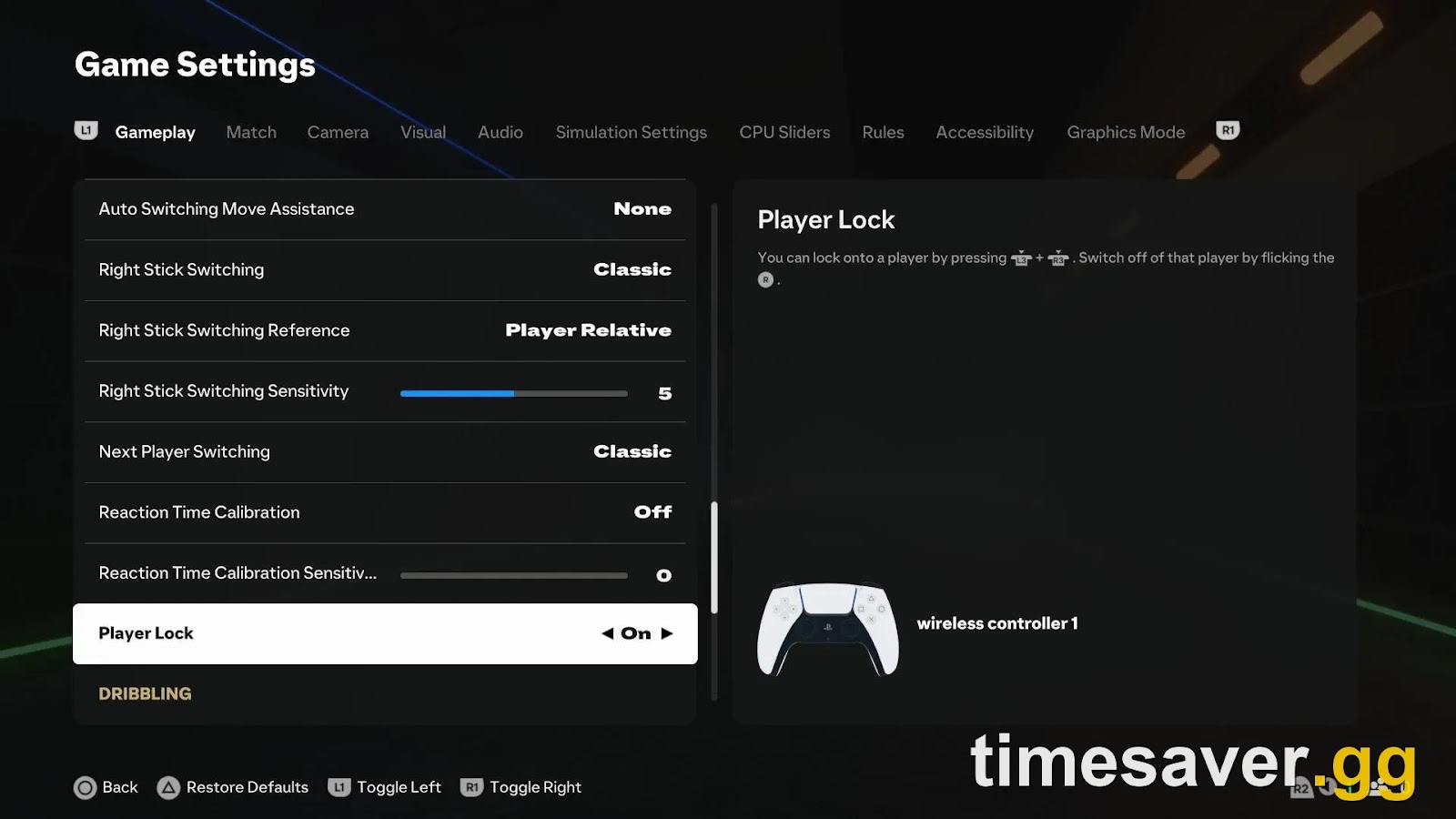
1. Use a wired Ethernet connection
This is the single biggest win, and it's not close. Wi-Fi is prone to interference, jitter, and packet loss that no in-game setting can undo. EA says it plainly in its official connection-quality guide:
"Use an Ethernet cable instead of WiFi for lower latency and reduced packet loss."
— EA Help, Troubleshoot Connection Quality
If you physically can't run a cable to your router, a pair of powerline (HomePlug) adapters sends the connection through your home's electrical wiring and is dramatically more stable than Wi-Fi for competitive FUT. A MoCA adapter (over coax) is an even better option if your home is wired for cable TV.
2. Kill background traffic and VPNs
Anything else using your bandwidth adds delay and packet loss:
- Pause every download/update on your console, PC, and any other device on the network (a background game update is a classic silent killer).
- Disconnect any VPN. EA specifically recommends turning VPNs off to test — they add a detour that raises latency. Only use a VPN if it demonstrably lowers your ping to EA's servers.
- If someone else is streaming 4K or downloading on your network, that congestion lands in your match too.
3. Prioritise the game on your router (QoS)
Many modern routers have a QoS (Quality of Service) setting. EA recommends using it to prioritise EA SPORTS FC traffic so the game's packets jump the queue ahead of everything else on your network. Log into your router admin page, find the QoS/traffic-priority section, and add your console or PC (or the game) as a high-priority device. A quick router restart before a Champs session also clears a stale connection.
4. Check your server region and crossplay
If you're routed to a distant data centre, latency climbs no matter how good your home connection is. In Settings → check your matchmaking/server region where available, and prefer the closest one. Turning crossplay off can also narrow your matchmaking pool to a more stable set of opponents on some platforms, though it may increase queue times during quieter hours.
5. Turn on Game Mode (and kill motion smoothing) on your TV
If your matches feel delayed even in offline Kick-Off, your display is adding input lag. Modern TVs process the picture before showing it, which can add 50–100+ milliseconds of delay:
- Enable Game Mode in your TV's picture settings — it bypasses most of that processing.
- Turn off motion smoothing / "TruMotion" / "Motion Flow" and any noise-reduction or dynamic-contrast features.
- Plug into an HDMI port labelled for gaming if your TV has one.
How do you fix lag and stutter on PC?
PC gets an extra layer of problems — and an extra set of fixes.
- Update your GPU driver. Install the latest driver straight from NVIDIA/AMD/Intel, then follow EA's PC graphics troubleshooting steps. Outdated drivers are the number-one cause of stutter after a patch.
- Cap your frame rate. In the video/display settings, set a Target Frame Rate that matches your monitor's refresh rate (60, 120, or 144 Hz). An uncapped, wildly fluctuating frame rate feels far worse than a locked, stable one.
- Fix the settings-reset bug. A known FC 26 PC bug resets graphics settings to Ultra on every launch. If your game randomly turns sluggish, re-apply your preferred settings, or lock them in the `fcsetup.ini` file / your GPU app so they stick.
- Match your monitors' refresh rates. Running two monitors at different refresh rates causes stutter for many players — set them to the same rate or disable the second monitor while you play.
- Use Fullscreen (not Borderless) and close overlays, browsers, and Discord streams that hog GPU/CPU in the background.
EA Sports FC 26 - FUT Champions Boost
Get FUT Champions wins in 10 minutes
The 60-second lag-fix checklist
Short on time before a Weekend League game? Do these five, in order:
- Plug in Ethernet (or restart your router if you can't).
- Pause all downloads and disconnect any VPN.
- Restart the game to grab a fresh server connection.
- Game Mode ON, motion smoothing OFF on your TV.
- PC: cap FPS to your refresh rate and re-apply your graphics settings.
Does buying coins or a boost actually fix lag?
Let's be honest: no — lag is a connection issue, and no purchase changes your ping. If your game feels delayed, work the checklist above first. But there's a related trap worth naming. A lot of "I keep losing" frustration during a heavy event window gets blamed on lag when the real gap is the squad or the grind. If your connection checks out and you're still dropping Rivals and Champs games, that's a squad and time problem, not a latency one — and that's where we can actually help you climb faster during the FUTTIES rush.
Skip the grind, keep the wins — timesaver.gg
- EA FC 26 Coins — fast & safe · no ban risk · best rate — upgrade your squad before Team 2 hits the market
- FUT Champions Boost · hit Elite · pro players — bank the rank rewards without burning your weekend
For more on making the most of the current event, see our guides on the FUTTIES token limit and reset times and the best formation for Weekend League. If your problem is menus and matchmaking rather than in-game delay, our Clubs matchmaking failed fix and season pass not working fix cover those specific errors.
Frequently Asked Questions
Why is EA FC 26 so laggy all of a sudden? It's almost always server-side congestion combined with your own connection. Big content drops like FUTTIES Team 2 (July 31, 2026) push EA's servers to seasonal-peak load, which raises latency for everyone. You can't fix EA's servers, but a wired connection, no background downloads, and no VPN strip out every avoidable millisecond on your end so you feel the delay far less.
How do I know if it's input lag or a connection problem? Play one offline Kick-Off match. If it feels smooth offline but sluggish online, it's a network problem — focus on your Ethernet cable, router, and server region. If it feels delayed offline too, your TV or monitor is adding display lag — turn on Game Mode and disable motion smoothing.
Does a wired connection really make a difference in FC 26? Yes, significantly. EA officially recommends Ethernet over Wi-Fi "for lower latency and reduced packet loss." Wi-Fi introduces jitter and dropped packets that no in-game setting can compensate for. If you can't run a cable, powerline or MoCA adapters are the next-best option and far more stable than Wi-Fi for competitive play.
How do I fix stuttering and input delay on PC? Update your GPU driver, cap your Target Frame Rate to match your monitor (60/120/144 Hz), and re-apply your graphics settings — FC 26 has a known bug that resets them to Ultra on every launch. Running dual monitors at different refresh rates also causes stutter, so match them or disable the second screen while you play.
Will turning off crossplay reduce my lag? It can narrow your matchmaking pool, which sometimes gives more stable matches, but it isn't a guaranteed fix and may increase queue times off-peak. Sort your connection, server region, and display first — those deliver the biggest, most reliable improvement.
Does buying FC 26 coins or a boost fix lag? No. Lag is a connection issue and no purchase changes your ping — always work the connection checklist first. Coins and a FUT Champions boost help when your problem is a weak squad or not enough time to grind, not latency.