Quick answer: On Switch 2, Ocarina of Time uses Y to attack, X to jump, B to put away, and A for actions, with A held to dash. ZL targets, ZR uses the selected item, L and R open Quick Select, and the right stick rotates the camera. If you played the N64 or 3DS version, the big change is the sword: it moved from B to Y.
Checked on November 2, 2026, three days before the November 5 launch. This map comes from the Basic Controls and Options screens in a preview build, filmed by the Zelda creator Zeltik and published by Nintendo Everything. We haven't played the game. We will check every row against the released version.
What are all the Ocarina of Time Switch 2 controls?
These are the 16 default inputs on the preview build's Basic Controls screen. Nintendo's labels are kept word for word.
| Input | Action |
|---|---|
| Left stick | Move |
| Right stick | Rotate Camera |
| Press right stick | Reset Camera |
| Y | Attack |
| X | Jump |
| B | Put Away |
| A | Actions |
| Hold A | Dash |
| ZL | Target |
| ZR | Use Item |
| L | Quick Select Items |
| R | Quick Select Items |
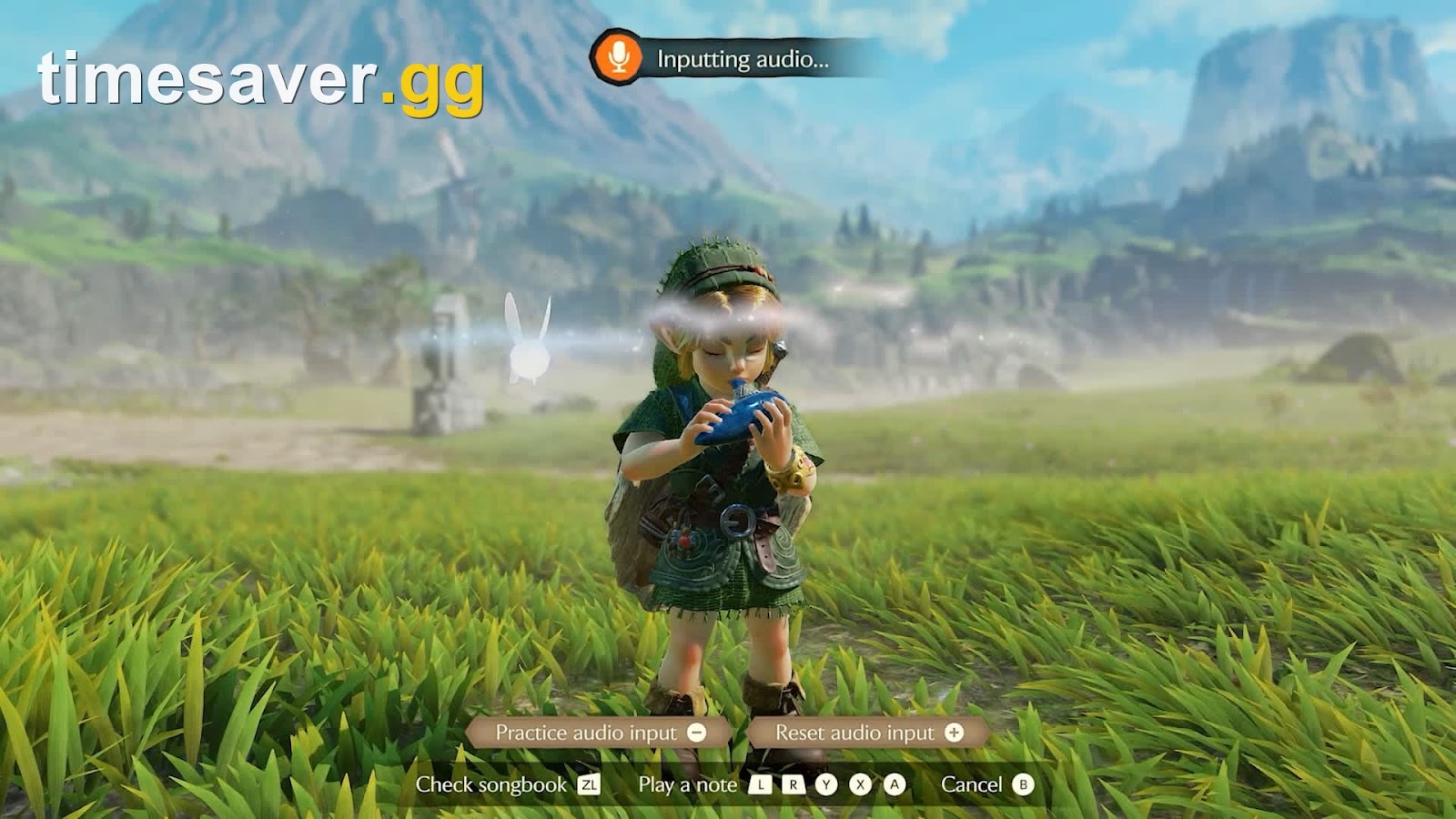
| D-pad left | Play Ocarina |
| D-pad right | Talk to Navi |
| Minus | Open Map |
| Plus | Open Menu |
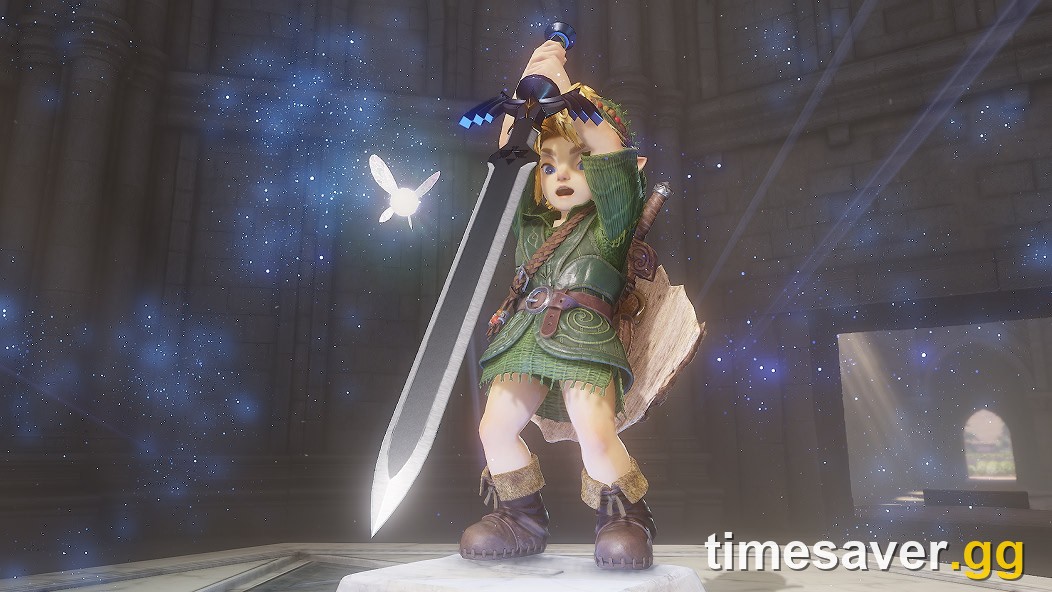
Official material backs up the headline changes. Nintendo's store page confirms the moves themselves: "Jump and dash through the action with enhanced controls and modern camera movements." A press screenshot of the Deku Tree, used in Game Informer's preview, shows a Jump X prompt on screen.

The same press set shows the equipped item labeled ZR in the top corner, and an ocarina and Navi on either side of a D-pad icon. Zeltik describes L and R as opening a scrolling item menu, similar to the Fuse menu in Tears of the Kingdom, and says it rarely took more than a second or two to pick an item.
What changed from the N64 and 3DS controls?
Almost every core action moved. The older columns below come from StrategyWiki's control table.
| Action | N64 | 3DS | Switch 2 |
|---|---|---|---|
| Sword | B | B | Y |
| Target | Z | L | ZL |
| Shield | R | R | Raised by ZL, per Zeltik |
| Use item | C buttons | X, Y or touch screen | ZR |
| Jump | Automatic at ledges | Automatic at ledges | X |
| Sprint | None | None | Hold A |
| Camera | Z recenters it | L recenters it | Right stick |
Three of these will catch veterans first:
- B is no longer the sword. It's Put Away, so old habits will do the wrong thing in a fight.
- ZL raises your shield once you own one. Zeltik says ZL "will target and hold up your shield," and that using it out of habit to snap the camera makes Link pull the shield out each time. Use the right stick instead.
- Ledges need a button press. Eurogamer's Lottie Lynn calls it the removal of auto-jumping and admits she flubbed her first jump right in front of Mido.
NPR's preview says you can choose to keep the old control scheme, but the preview build's Options screens show no auto-jump setting or classic layout among their 13 settings. Treat that as unconfirmed until launch.
Players coming from Breath of the Wild have a smaller adjustment. Gavin Lane at Nintendo Life wrote: "Sprint is mapped to 'A' here, but you will instinctively hold 'B' at first."
Can you change the jump button?
Yes, but previews disagree on where it can go, so we went to the game's own text. The Swap Jump Controls option in the preview build says: "Assign jump to B, and assign other actions, like put away, to X." That makes it an X and B swap, and Lane describes it the same way in Nintendo Life's comments.
Two previews describe it differently. Eurogamer says jump can move to Y, and Nintendo Wire and Zeltik describe a swap between jump and attack. The on-screen description doesn't mention attack or Y, so we would trust it over those summaries. Option text could still change by launch.
Which settings should you change first?
The preview build showed 13 settings in Options, plus an amiibo toggle. All 13 are in the table with the value seen in the footage.
| Setting | Value in preview |
|---|---|
| Invert Vertical Camera | Off |
| Invert Horizontal Camera | Off |
| Camera-Rotation Speed | Normal |
| Motion-Control Aiming | On |
| Targeting Type | Hold |
| Swap Jump Controls | Off |
| Ocarina Mic Input | None |
| Swap Ocarina-Playing Controls | Normal |
| In-Game Interface | Normal |
| Subtitle Display | On |
| Subtitle Speaker-Name Display | Off |
| Voice Language | English |
| Controller Vibration | Normal |
We would look at four of these before leaving Kokiri Forest:
- Targeting Type: Hold keeps the lock while ZL is down. Toggle locks on with one press and releases with the next, which may be easier on your finger during long fights. Nintendo Everything confirms both behaviors.
- Motion-Control Aiming: Nintendo says the Fairy Bow and Hookshot "can be aimed through button controls or through motion controls." The AU Review reports using gyro or the thumb stick on the Hookshot. Turn it off if you'd rather not tilt your controller.
- Ocarina Mic Input: This was set to None in the footage, so turn it on if you want to hum. Our Ocarina of Time songs guide has the notes and the mic prompt.
- In-Game Interface: Normal shows the full HUD. Pro keeps minimal information, and Master shows none. Zeltik found Master even removes the lock-on marker, which leaves Navi as your only guide, so it's a poor first-run choice.
Swap Ocarina-Playing Controls is worth knowing if you learned songs on older hardware. Wire and Zeltik describe a two-handed layout like 3DS and a one-handed layout like N64.
How do combat moves work on Switch 2?
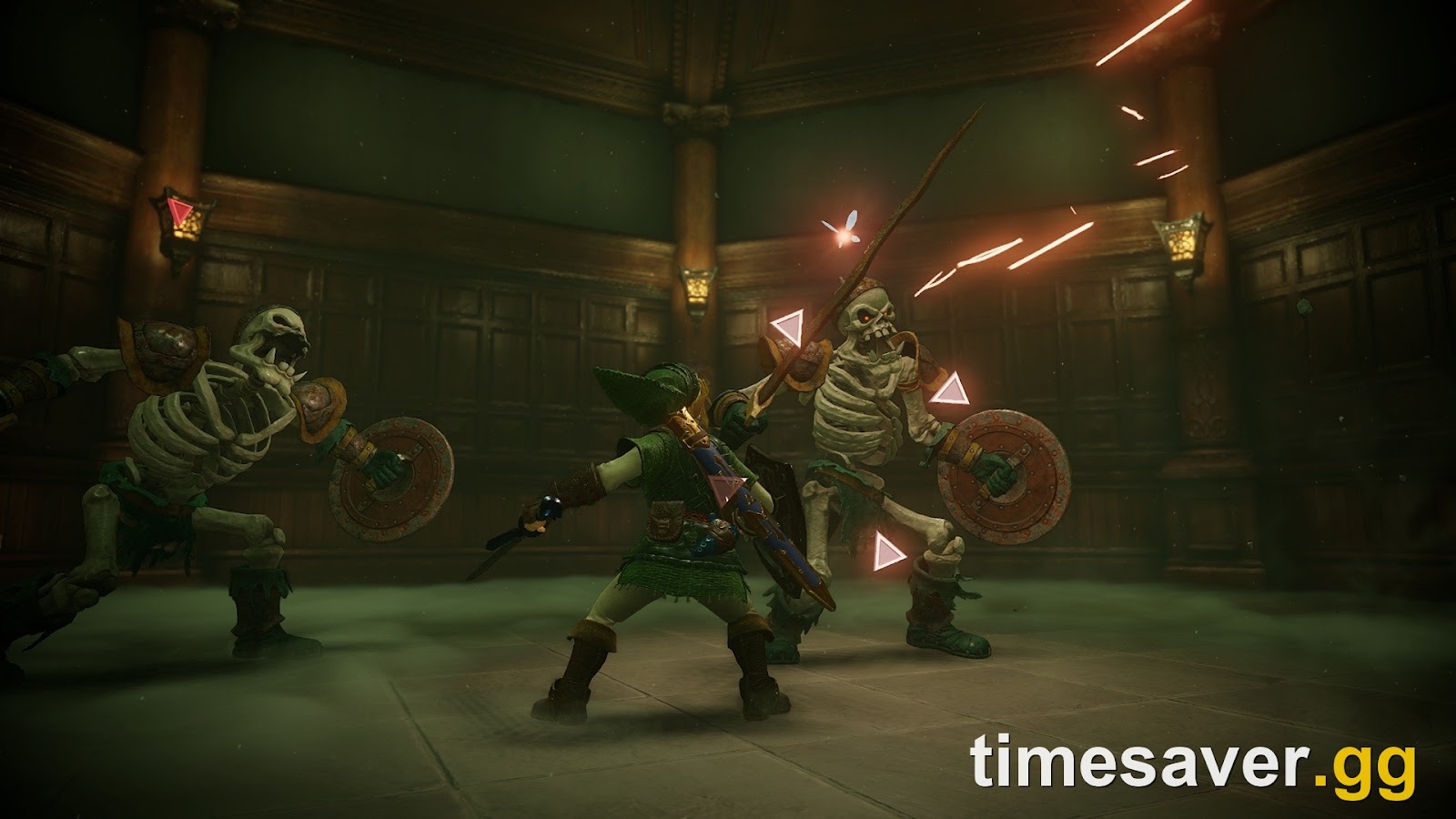
The menu has a Special Actions page marked New, listing combinations that take more than one button. Nintendo Wire names Roll Attack, Backflip and Jump Attack, and Zeltik also lists target move and side jump. His footage gives the following inputs:
- Horizontal swing: Press Y.
- Vertical swing: Hold the left stick up and press Y.
- Thrust: Do the same while targeting.
- Jump attack: While targeting, press X then Y, or tilt forward and press A. Zeltik says it still deals double damage.
- Spin attack: Hold attack, or spin the stick and press attack.
Nintendo Life's Lane only mentions the manual version of the jump attack and hadn't adjusted to it after a couple of hours, so try both methods early. Zeltik also saw two question-mark slots on the page as Young Link, which suggests techniques you unlock later.

Targeting has one limit that previews flagged. Game Informer's Brian Shea found no simple way to swap targets among several enemies, so he released the trigger, moved the camera and squeezed it again. Shea added that it worked that way in the original.
Can you remap every button?
Inside the game, the only button changes seen so far are Swap Jump Controls and Swap Ocarina-Playing Controls. Outside it, Nintendo says on its Switch 2 accessibility page that you can change the button mapping on each controller. This is a system-wide feature, so we expect it to work here, but on-screen prompts may not follow your remap.
The Switch 2 Pro Controller and Joy-Con 2 charging grip also have GL and GR buttons. Nintendo's support page says you can hold HOME in a game and assign any function you like to them. Putting Jump on one would let you keep your thumb on the camera stick.
FAQ
What button is jump in Ocarina of Time on Switch 2? X by default, and the Swap Jump Controls option moves it to B while put away moves to X.
How do you run in the Switch 2 version? Hold A to dash. Game Informer also reports you can sprint out of a roll.
Can you still play with the old N64 controls? Not as a preset, as far as the preview's Options screens show. You can use Nintendo's Switch 2 button mapping, or play the original through Nintendo Classics, where StrategyWiki notes controls can be remapped in the suspend menu.
Does Ocarina of Time have gyro aiming on Switch 2? Yes. It's optional, and Motion-Control Aiming sits in Options, where it was on in the preview build.
How do you play the ocarina on Switch 2? Press left on the D-pad, then use L, R, A, Y and X for the notes. Our songs guide lists every song, and the Electric OCARINA OF TIME accessory is $49.99 but showed out of stock on Nintendo's US store on November 2.
When can you try these controls? The digital version should unlock at 9 p.m. PT on November 4. Our release time guide has every time zone, and the preorder guide covers price and file size.