Quick answer (TLDR): If Warzone or Black Ops 7 still shows "Failed Attestation Status" or "BIOS Firmware: Update Required" even though TPM 2.0 and Secure Boot are already ON, the problem is almost always your TPM firmware version, not the toggle. On AMD, Activision's official rule is: if your fTPM Manufacturer Version reads 3.x.0.x (e.g. 3.92.0.5), you must flash a newer BIOS so the version becomes 3.x.5.x or higher (e.g. 3.92.5.5). Open tpm.msc to read your version, then: update the fTPM firmware via the latest (often beta) BIOS → Clear TPM and re-enable Secure Boot → rerun the Secure Attestation Wizard. Cheap X99/server boards (Machinist, Huananzhi) and most cloud PCs/VMs can fail this check permanently. Full breakdown below. For more, see our guide on Warzone & Black Ops 7 'Waiting for Relay' Fix (Season 4.
You already did everything the basic guide said. TPM 2.0: on. Secure Boot: on. UEFI boot, GPT disk — all green. And Call of Duty still drops you with "Failed Attestation Status Applied" or "BIOS Firmware: Update Required," locking Black Ops 7 to Nuketown 24/7 and Warzone to Battle Royale Casual. This is the advanced case, and it has a different cause than the simple "turn the settings on" fix. If you haven't enabled TPM 2.0 and Secure Boot at all yet, start with our base walkthrough — Warzone & Black Ops 7 'Failed Attestation Status' Fix: Enable TPM 2.0, Secure Boot & Update BIOS — then come back here for the cases where that isn't enough.

Call of Duty - Bot Lobby
Get bot lobby in 10 minutes
Why is Warzone still saying "BIOS Update Required" when TPM and Secure Boot are already on?
Because the check isn't only asking "is TPM on?" — it's asking "is your TPM firmware a version Microsoft and Activision trust?" Call of Duty's RICOCHET Anti-Cheat validates your hardware through Microsoft Azure Attestation, and an out-of-date fTPM (firmware TPM) version fails that validation even while the feature is fully enabled in BIOS.
Activision is explicit about this on its support site:
"Did you enable TPM 2.0 but keep getting prompted in Call of Duty? It's possible your motherboard requires a BIOS firmware update."
— Activision Support, "Trusted Platform Module (TPM) 2.0 and Secure Boot for Call of Duty"
So the toggle was never the whole story. On the vast majority of "I have everything on and it still fails" reports, the fix is a firmware update that bumps your fTPM version — not flipping another switch. TPM 2.0 and Secure Boot have been required since Season 05 (August 2025), but Season 4 (live June 4, 2026) tightened enforcement so non-compliant systems are actively shunted into a restricted matchmaking pool instead of just warned. The same firmware requirement applies if you're seeing mw4 bios firmware update required in Modern Warfare 4 — the fix steps are identical.
Step 1: Find out what's actually failing (read your fTPM version)
Before flashing anything, get two pieces of data so you're not guessing.
A. Run the Secure Attestation Wizard. Activision's official tool scans your PC and returns either "System compliant: Your PC meets all security requirements" or a list of exactly which checks fail. If it says you're compliant but the game still blocks you, restart the PC fully (not sleep) and relaunch — the in-game status can lag a reboot.
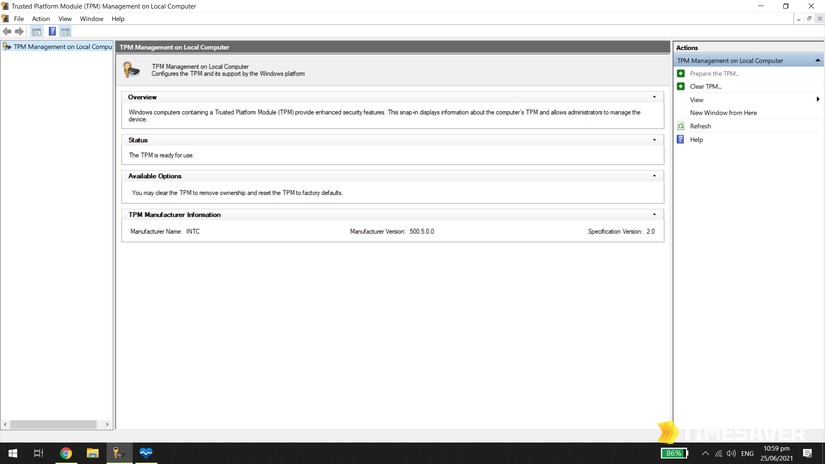
B. Read your TPM Manufacturer Version. Press Win + R, type tpm.msc, press Enter. In the TPM Manufacturer Information box, note the Manufacturer Version. This single number tells you whether you need a firmware update.
Step 2: The AMD fTPM rule — update firmware, not just BIOS
This is the fix for most AMD systems, and Activision states the rule precisely:
"If your Manufacturer Version is AMD 3.x.0.x, where x represents any number, your motherboard requires a firmware update."
— Activision Support, TPM 2.0 and Secure Boot for Call of Duty
In plain terms:
| Your fTPM Manufacturer Version | Status | Action |
|---|---|---|
| AMD 3.92.0.5 (pattern 3.x.0.x) | ❌ Fails attestation | Flash newer BIOS to update fTPM |
| AMD 3.92.5.5 (pattern 3.x.5.x) | ✅ Accepted | No update needed |
The trap people hit: they "updated the BIOS" months ago and assume they're current. But the version that matters is the fTPM version in tpm.msc, and only a BIOS release that ships the newer AMD AGESA / fTPM firmware will move it out of the 3.x.0.x range. Download the latest BIOS for your exact motherboard model from the manufacturer (MSI, ASUS, Gigabyte, ASRock), flash it, then go back to tpm.msc and confirm the Manufacturer Version actually changed. If it still reads 3.x.0.x, that BIOS didn't include the firmware bump — check for a newer one.
⚠️ Before you flash: a BIOS update can reset Secure Boot and trigger BitLocker recovery on the next boot. Save your BitLocker recovery key first — sign in at your Microsoft account, open the Devices tab, find your PC, and click See details to view the key. Without it, an encrypted drive can lock you out after the flash.
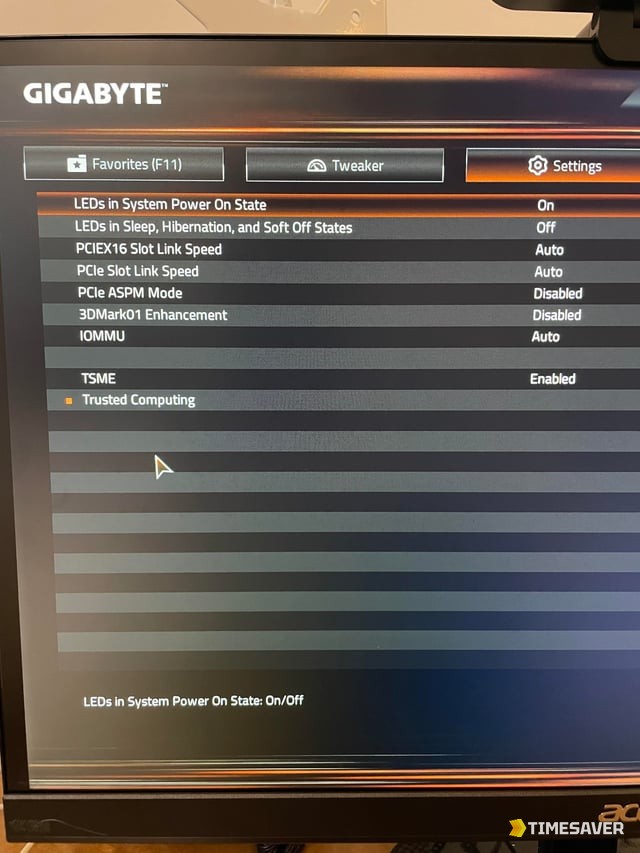
After flashing, re-enable TPM 2.0 and Secure Boot (a flash often turns them off), boot into Windows, and rerun the Secure Attestation Wizard.
Step 3: Clear the TPM and re-pair it
If your version is correct but attestation still refuses you — common after a CPU swap, RAM change, or a half-applied BIOS update that left corrupted TPM state — clearing the TPM forces a clean re-provision.
- Confirm your BitLocker recovery key is saved (clearing TPM will demand it on encrypted drives).
- Open tpm.msc → right panel → Clear TPM, or do it from BIOS (often labelled "TPM Clear" / "Pending TPM Operation").
- Reboot, let Windows re-initialise the TPM, re-confirm Secure Boot is on, then relaunch Call of Duty.
This is the step that fixes the "I literally have the right version and it still fails" reports — the attestation was reading stale, corrupted firmware state, and a clear rebuilds it.
Step 4: Try the latest beta BIOS
Board makers frequently ship the Call-of-Duty-compatible fTPM firmware in a beta BIOS weeks before it lands in a stable release. Players on boards like the MSI B450 Tomahawk Max reported the error vanished only after flashing the latest beta BIOS, then re-enabling TPM 2.0 and Secure Boot. If the newest stable BIOS for your board still leaves you on a 3.x.0.x version, check the Support → BIOS → Beta section on the manufacturer's product page.

Call of Duty - Ranked Boost
Get ranked boost in 10 minutes
Will my PC ever pass? Server CPUs and cheap X99 boards
Here's the hard truth the basic guides skip: some hardware cannot pass this check at all.
Budget Chinese X99 boards — Machinist, Huananzhi, Kllisre and similar — frequently ship with incomplete or modified SMBIOS tables, and modern attestation systems reject them even when TPM 2.0 and Secure Boot report as correctly enabled. The same applies to many server/workstation CPUs and boards: they were never meant for consumer gaming, so their firmware doesn't get the updates needed to satisfy RICOCHET's requirements. If you're running an Aliexpress X99 combo or a repurposed server platform and you've exhausted Steps 1–4, the attestation may never go green — the limitation is the board, not your settings.
Cloud PCs, virtual machines and GeForce NOW
Attestation also commonly false-positives on virtual machines, cloud-PC instances and some cloud-gaming setups because the virtualised TPM and firmware can't present the hardware root-of-trust the check expects. If you're seeing "BIOS Update Required" on a VM or a rented cloud PC, that's expected behaviour, not a bug you can flash away — you'll need a physical, compliant Windows machine to clear it.
Last resort: a clean Windows install
When firmware is current, the version is right, and TPM is cleared but the error persists, a clean Windows 11 reinstall has resolved it for players whose system files were corrupted (often after a hardware swap). Make a bootable Windows 11 USB with the official Media Creation Tool / Rufus, back up your files, and do a clean install with Secure Boot and TPM enabled in BIOS first. Treat this as the final option after Steps 1–4.
Stuck on Nuketown 24/7 or Battle Royale Casual? Don't lose your season
While you're locked out of ranked playlists, your camo grind, prestige climb and SR all stall — and a multi-day BIOS/firmware fix can cost you a chunk of the season. Once you're back in (or if you want to claw back the progress you lost during the downtime), the fastest catch-up is to skip the grind entirely:
Get back to where you were — fast, hand-done by pros:
- CoD Account & Weapon Leveling — recover lost levels, prestige and weapon XP without the grind
- CoD Bot Lobbies — easy lobbies to rebuild K/D and farm camos fast
- CoD Camo Unlocks (BO7) — finish the mastery camo road you were locked out of
New to how boosting works? Our Black Ops 7 boosting guide breaks down what's safe and how it's done, and if bot lobbies are new to you, see Warzone Bot Lobbies Explained.
FAQ
I have TPM 2.0 and Secure Boot on but Warzone still says "BIOS Update Required" — why? The check validates your fTPM firmware version, not just whether the feature is enabled. On AMD, a Manufacturer Version matching 3.x.0.x fails until you flash a BIOS that updates the firmware to 3.x.5.x or higher. Read your version in tpm.msc and update the BIOS for your exact board.
How do I check my TPM/fTPM version? Press Win + R, type tpm.msc, press Enter, and read the Manufacturer Version under TPM Manufacturer Information. If it's AMD 3.x.0.x, you need a firmware update per Activision's official guidance.
I updated my BIOS and it still fails. What now? Confirm the fTPM version in tpm.msc actually changed — many BIOS updates don't include the newer fTPM firmware. If it still reads 3.x.0.x, try the latest beta BIOS. If the version is correct but it still fails, Clear TPM (after saving your BitLocker key) and re-enable Secure Boot.
Can a cheap X99 or server motherboard pass attestation? Often no. Budget X99 boards (Machinist, Huananzhi, Kllisre) and server/workstation platforms frequently have incomplete SMBIOS tables or firmware that never gets updated, so attestation rejects them even with TPM and Secure Boot correctly enabled.
Will I get banned for the failed attestation status? No. It is not a ban. RICOCHET simply restricts you to a limited matchmaking pool (Nuketown 24/7 in Black Ops 7, Battle Royale Casual in Warzone) until your PC passes the Microsoft Azure Attestation check.
Do I need to worry about BitLocker before changing BIOS settings? Yes. Flashing BIOS, toggling Secure Boot or clearing the TPM can trigger BitLocker recovery on the next boot. Save your recovery key first via your Microsoft account → Devices → See details.