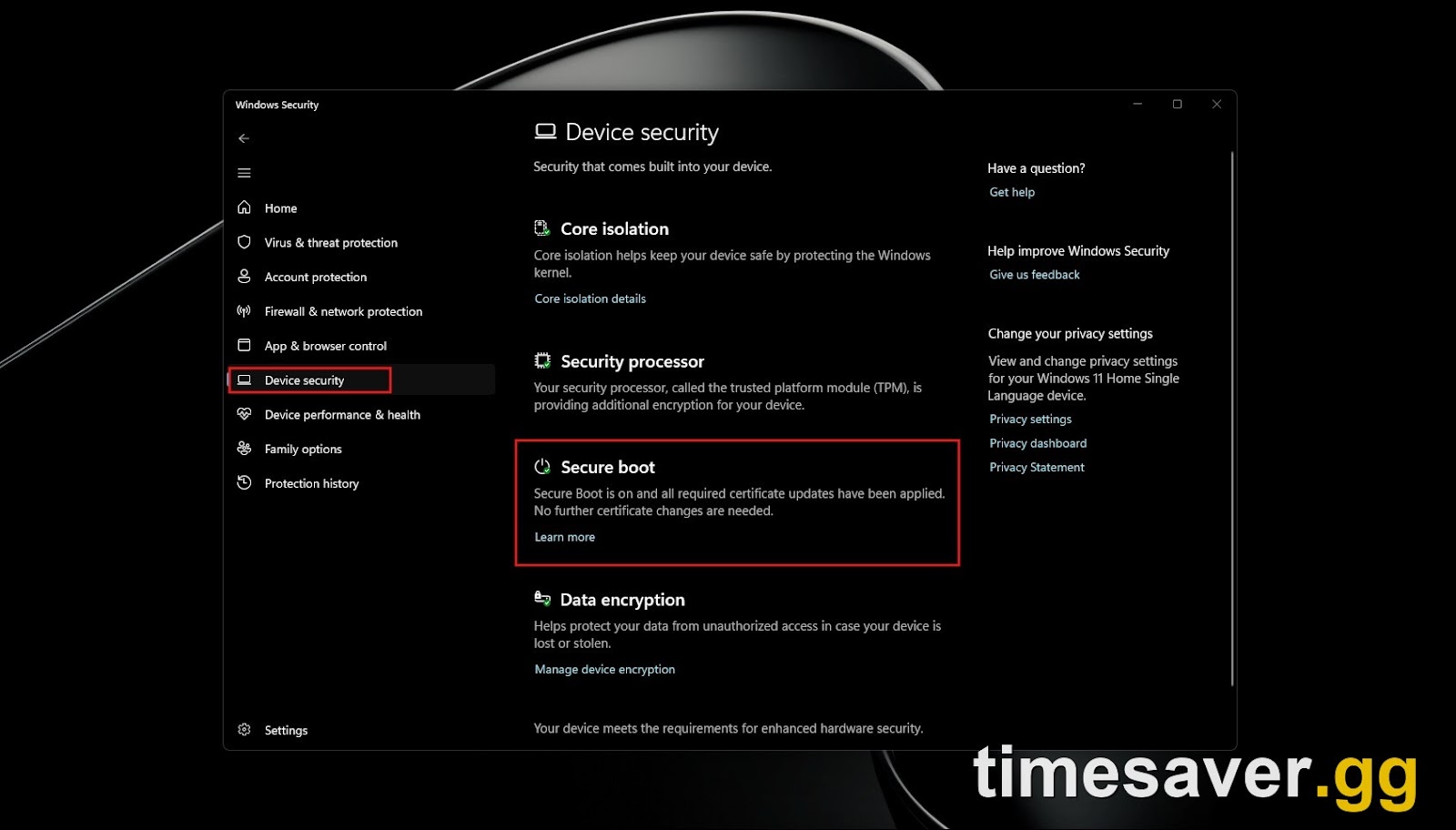
If Delta Force kicks you back to the menu the instant you try to enter a match — or you see an anti-cheat error the moment the Game Lobby loads — the cause is almost always the same: Secure Boot and TPM 2.0 are switched off on your PC. Since 2026-08-15, the game's anti-cheat treats both as a hard requirement, not a suggestion. Turn them on and the block disappears.
This guide covers what the Anti-Cheat Expert (ACE) system actually checks, how to confirm your current status in about ten seconds, and the exact BIOS steps to switch both on for Windows 11 and Windows 10.
Quick answer: how do I fix the Delta Force Secure Boot block?
TL;DR — Delta Force's ACE anti-cheat verifies that TPM 2.0 and Secure Boot are both ON the moment you enter the Game Lobby. If either is off, you can't join a match. Fix it in three stages:
1. Check your status — press Win + R, type msinfo32, and confirm Secure Boot State = On and BIOS Mode = UEFI. Type tpm.msc to confirm Specification Version 2.0.
2. Enter your BIOS/UEFI — restart and tap your motherboard's setup key (usually Del, F2, or F10) during boot.
3. Enable both — turn on TPM (listed as PTT, fTPM, or PSP fTPM) and Secure Boot, make sure Boot Mode is UEFI (not Legacy/CSM), save, and reboot.
Most players are done in under five minutes. The one catch that trips people up — an older disk partition style (MBR) that blocks UEFI mode — is covered near the end.
Why does Delta Force suddenly require Secure Boot and TPM 2.0?
Delta Force runs the ACE (Anti-Cheat Expert) system on PC. ACE's public security briefings describe Secure Boot and TPM 2.0 as a hardware-level "perimeter defense" against a specific class of cheat that loads before Windows and the anti-cheat even start.
In ACE's own words:
"Secure Boot is exactly what it sounds like: a 'Safety Check' for your PC's startup. It ensures that when you hit the power button, your computer only loads software that is trusted and signed by the manufacturer. It stops malicious 'bootloaders'—cheats that try to wake up before Windows (and before ACE) does."
TPM 2.0 is the second half of that lock. It's a dedicated security chip on your motherboard that stores cryptographic keys and proves your system hasn't been tampered with. Together, the two close off the "boot-time" and "memory" attack surface that unsigned cheats rely on.

The practical upshot for a legitimate player is simple: if these two switches are off, ACE can't verify your system is clean, so it refuses to let you into a match. This is not a bug and there is no in-game toggle to disable it — the requirement lives in your PC's firmware, not in Delta Force's settings.
What exactly does the anti-cheat check — and does it scan my files?
This is the question that worries most players, and ACE has been unusually specific about the scope. According to its published security notes, the verification is narrow:
"What we check: We verify only the status of two switches: 'Is TPM 2.0 On?' and 'Is Secure Boot On?' ... This verification happens only once when you enter the Game Lobby. We do not check your personal files."
Three facts are worth pinning down because they come up constantly in community threads:
- It's a one-time, lobby-only check. ACE reads the two switch states once, as you enter the Game Lobby — not continuously, and not while the match is running.
- It does not read your files. The check is limited to the on/off state of Secure Boot and TPM 2.0.
- The status is held for one week. ACE states the switch-status data "is saved for one week strictly to help Player Support troubleshoot history queries. After that, it is automatically deleted."
That one-week retention window is the reason some players who just enabled Secure Boot still get flagged on their next session — stale history can lag the live state. If that happens to you, a clean reboot after enabling both switches resolves it.
Step 1 — Check whether Secure Boot and TPM 2.0 are already on
Before touching your BIOS, confirm what you actually have. You may only need to flip one switch, not both.
Check Secure Boot (and your BIOS mode):
- Press Win + R, type msinfo32, and press Enter.
- In the System Summary, look at two lines:
- BIOS Mode — this must read UEFI. If it says Legacy, Secure Boot cannot be turned on until you convert the disk (see the troubleshooting section).
- Secure Boot State — On means you're already set; Off means you need to enable it in BIOS.
Check TPM 2.0:
- Press Win + R, type tpm.msc, and press Enter.
- The TPM Management window opens. If you see "The TPM is ready for use," look under TPM Manufacturer Information for Specification Version — it should read 2.0.
- If you instead see "Compatible TPM cannot be found," the chip is either absent or disabled in BIOS — Step 2 turns it on.
Jot down which of the two you still need. If both already show green, Delta Force's block is coming from something else — see the FAQ.
Step 2 — Enter your motherboard's BIOS/UEFI
You enable both switches from the firmware menu, not from Windows.
- Save your work and fully restart the PC.
- As it boots, repeatedly tap your setup key. The most common keys are Del (most desktop motherboards), F2 (many laptops and some boards), or F10. If you're unsure, the splash screen usually names it, or you can use Windows' built-in route: Settings → System → Recovery → Advanced startup → Restart now → Troubleshoot → Advanced options → UEFI Firmware Settings.
- If your BIOS opens in a simplified "EZ" view, look for an Advanced Mode option (often F7).
The exact labels differ by manufacturer, which is why the next step lists each brand's naming.
Step 3 — Enable TPM 2.0 and Secure Boot
Turn on TPM 2.0. The setting is rarely called "TPM" outright; it's usually under Advanced, Security, or Trusted Computing, named per your CPU/board brand:
- Intel boards: look for PTT (Platform Trust Technology) or Intel Platform Trust Technology — set to Enabled.
- AMD boards: look for fTPM, AMD fTPM, or AMD CPU fTPM / PSP fTPM — set to Enabled.
- Dedicated TPM chip: some boards list a discrete TPM Device option — set it to Enabled / Firmware TPM.

Turn on Secure Boot. This lives under Boot, Security, or Authentication:
- Set Boot Mode / CSM so the system boots in UEFI — disable CSM (Compatibility Support Module) / Legacy boot if present. Secure Boot is greyed out while CSM is enabled.
- Set OS Type to Windows UEFI Mode if your board shows it.
- Set Secure Boot to Enabled. If it won't let you, choose Restore / Install Default Secure Boot Keys first, then enable it.
Save and exit (usually F10 → confirm). The PC reboots.
Re-run msinfo32 and tpm.msc from Step 1 to confirm both now report On and 2.0. Launch Delta Force, enter the Game Lobby, and the block should be gone.
What if Secure Boot is greyed out or BIOS Mode still says Legacy?
This is the single most common sticking point, and it has a specific cause: your Windows drive is still using the older MBR partition style, which only boots in Legacy mode. Secure Boot requires UEFI, and UEFI requires a GPT disk.
You do not need to reinstall Windows to fix this. Microsoft ships a built-in converter:
- Open Command Prompt as Administrator.
- First, validate the disk with mbr2gpt /validate /allowFullOS.
- If validation passes, convert with mbr2gpt /convert /allowFullOS.
- Reboot, enter BIOS, switch Boot Mode to UEFI, then enable Secure Boot as in Step 3.
Because disk conversion carries a small risk, back up anything important first. If mbr2gpt reports the disk can't be converted, that typically means more than the allowed number of partitions — a clean UEFI reinstall is the fallback, but most modern systems convert without issue.
Is my PC even capable of this?
Nearly every PC built in the last several years is. TPM 2.0 has been mandatory for Windows 11 since its launch, so any machine that shipped with or upgraded to Windows 11 already has the hardware — it may simply be switched off in BIOS. Pre-2016 systems and some budget boards are the main exceptions; if tpm.msc reports no compatible TPM and your board has no PTT/fTPM option at all, the chip genuinely isn't present.
Windows 10 players are affected too: Delta Force's requirement is independent of your Windows version, so a Windows 10 machine still needs both switches on in firmware.
FAQ
Does Delta Force require Secure Boot and TPM 2.0 on PC? Yes. Since 2026-08-15, the ACE anti-cheat verifies that both TPM 2.0 and Secure Boot are switched on the moment you enter the Game Lobby. If either is off, you cannot enter a match. It is a hard requirement with no in-game override.
Will enabling Secure Boot delete my files or break my other games? No. Enabling Secure Boot and TPM 2.0 does not erase data. It can affect dual-boot setups with certain Linux distributions or unsigned bootloaders, but a standard single-Windows gaming PC is unaffected. Back up before any disk conversion as a precaution.
Does the anti-cheat scan my personal files? No. ACE states it verifies "only the status of two switches" — whether TPM 2.0 and Secure Boot are on — and "does not check your personal files." The check runs once at the Game Lobby, and the on/off status is retained for one week for support troubleshooting, then automatically deleted.
I enabled both but Delta Force still blocks me — why? First re-confirm with msinfo32 (Secure Boot State = On, BIOS Mode = UEFI) and tpm.msc (Version 2.0); a change that didn't save is the usual culprit. If both read correctly, do a full reboot — ACE's one-week status cache can lag a just-changed state until the next clean session. Persistent login-specific errors (codes like 4/35 or 5/1200) are a separate issue covered in our Delta Force login failed and error-code fixes guide.
Secure Boot is greyed out in my BIOS — how do I enable it? That means your system is booting in Legacy/CSM mode. Disable CSM, set Boot Mode to UEFI, and if your Windows drive is MBR, convert it to GPT with mbr2gpt /convert /allowFullOS first. Secure Boot becomes selectable once the system is in UEFI mode.
Is Secure Boot required on console (PS5, Xbox)? No. This is a PC-only requirement tied to the ACE anti-cheat on Windows. Console versions handle platform security at the system level, so there's nothing for you to toggle.
The short version
Delta Force's Secure Boot and TPM 2.0 requirement looks intimidating but is almost always a two-switch BIOS fix. Confirm your status with msinfo32 and tpm.msc, enable PTT/fTPM and Secure Boot in firmware, make sure you're in UEFI mode, and reboot. If Secure Boot is greyed out, convert your drive to GPT with mbr2gpt and switch to UEFI. Once both switches read on, the Game Lobby lets you straight through — and your account stays on the right side of an anti-cheat system that bans tens of thousands of cheaters every week.
For more PC setup and troubleshooting walkthroughs, browse our other Delta Force guides.
Sources: ACE (Anti-Cheat Expert) Security Brief, intl.anticheatexpert.com; Delta Force official anti-cheat page, playdeltaforce.com/en/anti-cheat.html; Microsoft Support (TPM and Secure Boot documentation).