Star Citizen is one of the most demanding games you can run in 2026, and Alpha 4.10.1 is no exception. If you are dropping into single digits in Area18 or stuttering every time a patch lands, you are not alone — and most of it is fixable without new hardware. This guide covers the exact in-game settings, Windows tweaks, and realistic expectations for Alpha 4.10.1 (the current LIVE build since 16 September 2026), based on CIG's own guidance and what high-end players are actually seeing right now.
Key Takeaways
- Star Citizen is CPU- and RAM-bound, not GPU-bound in busy areas. 32 GB of RAM and an NVMe SSD do more for your FPS than a GPU upgrade.
- The biggest in-game wins in Alpha 4.10.1: turn Planet Volumetric Clouds to Low, keep Object Container View Distance at Medium/High (not Ultra), and enable an upscaler (DLSS, FSR, or XeSS) at Quality or Balanced.
- Server FPS caps your FPS. On a struggling server, even a 4090 drops to 25–30 in cities. This is not your PC, and no setting fixes it.
- Realistic 2026 targets: 25–30 FPS in high-density cities, 40–60 FPS in lighter areas, 60+ out in space — on a recommended-tier rig.
- For persistent crashes or black screens in 4.10.1, CIG's own Known Issues list suggests switching your graphics API from Vulkan to DirectX 11.
Why Star Citizen runs the way it does
Before touching a single slider, understand the bottleneck — because it changes which fixes matter.
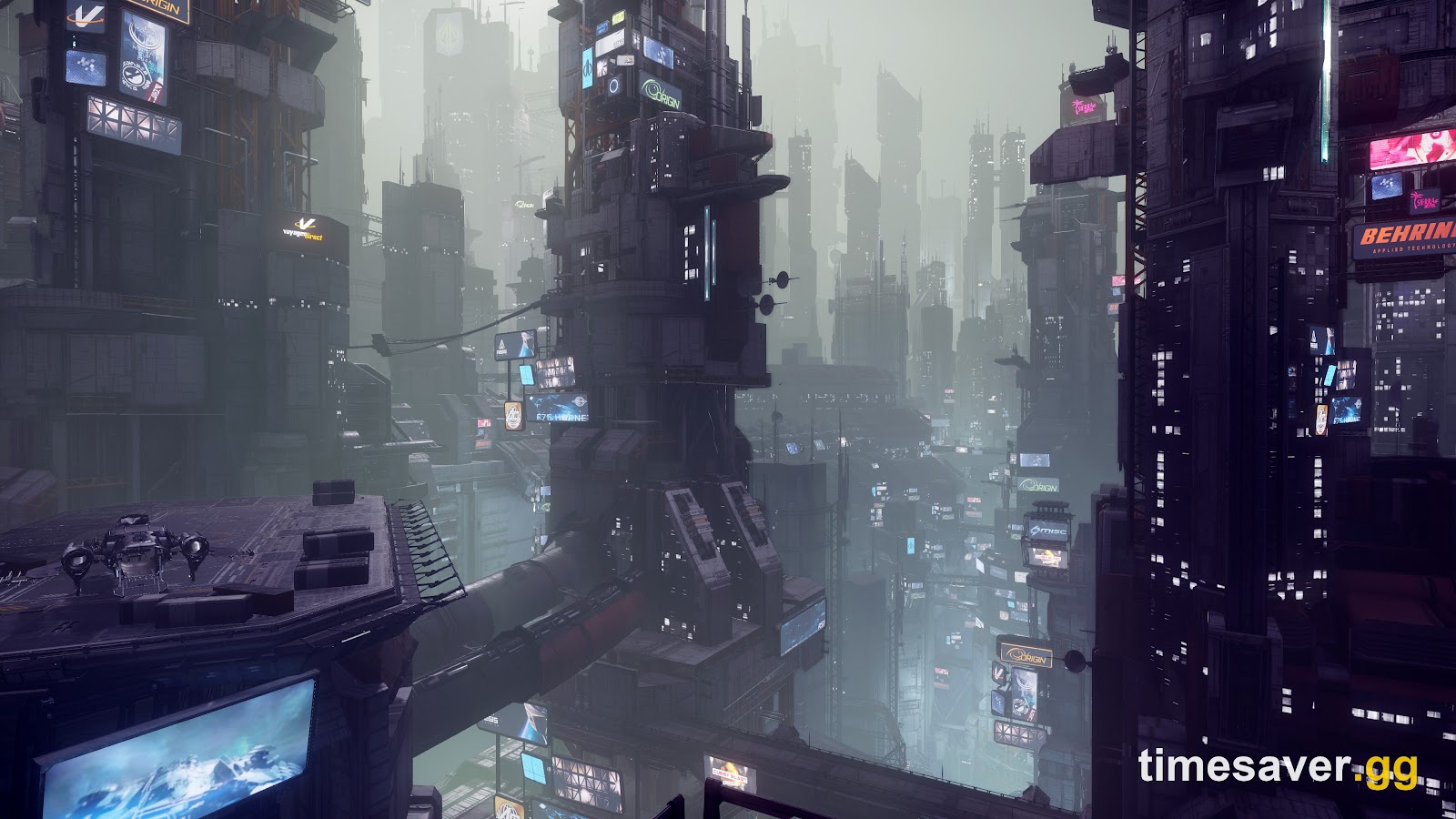
Star Citizen's StarEngine is unusually CPU- and memory-heavy. In open space your frame rate is usually fine, but the moment you fly into a landing zone like Area18, Orison, or New Babbage, the CPU has to simulate hundreds of players, NPCs, shops, and physics objects at once. That is where even flagship rigs collapse.
Here is the part most guides bury: a large share of your performance is decided by the game server, not your PC. As one player put it in a current Alpha 4.10.1 performance thread:
"It's really out of the end-user's control unfortunately… if server performance is really good, then FPS is too, but sometimes the server is just shitting the bed and it seems to affect the players pretty badly too."
That is accurate. Server-side simulation (server FPS) directly limits how fast your client can run. When a shard is degraded, no graphics setting will save you. So the goal of this guide is to win every frame that is actually in your control — and to set realistic expectations for the frames that are not.

The three things that matter most (do these first)
1. Get to 32 GB of RAM
This is the single highest-impact upgrade for Star Citizen, ahead of your GPU. CIG's published system requirements list 16 GB as the bare minimum and 32 GB at the recommended tier. On 16 GB you will hit hard stutters and freezes as the game and Windows fight over memory.
If you cannot upgrade yet, the stopgap that keeps 16 GB systems playable is a large pagefile (around 32 GB) on a fast SSD — it prevents the hard freezes, though it will never match real RAM. Testing on very large (96 GB) systems shows Star Citizen only consuming roughly 20–30 GB, so there is no benefit to going past 32 GB for this game.
2. Install Star Citizen on an SSD — ideally NVMe
Star Citizen streams enormous amounts of data as you quantum-travel between locations. On a mechanical hard drive you get texture pop-in, infinite-looking loads, and stutter. An NVMe SSD is effectively mandatory in 2026 and is the difference between a 30-second load and a two-minute one.
3. Match your CPU expectations to the cities
Star Citizen leans on single-thread and cache performance, which is why chips with large caches (such as AMD's X3D line) punch above their weight here. But do not expect miracles in cities: even players on an i7-14700K + RTX 4090 report sitting at a stable 55–60 real FPS in Area18 and Orison, while an i5-13600K + RTX 4070 Ti on the same scenes lands around 30–40 FPS. Those are normal numbers. If you are far below them, the settings below will help.
Best in-game graphics settings for Alpha 4.10.1
Open Options → Graphics in game. These are the settings with the best performance-to-visual-quality ratio right now. Star Citizen's StarEngine natively supports spatial and temporal upscalers — NVIDIA DLSS, AMD FSR, and Intel XeSS — under its Vulkan backend, so everyone has an upscaling option regardless of GPU brand.
| Setting | Recommended value | Why |
|---|---|---|
| Graphics API | Vulkan (default); try DX11 if unstable | Vulkan is default; DX11 is CIG's current fallback for crashes (see below) |
| Upscaling (DLSS / FSR / XeSS) | On — Quality or Balanced | The biggest free FPS gain; renders at a lower internal resolution |
| Render Quality / Graphics Quality | High (not Very High/Custom-maxed) | Ultra gives little visual gain for a large frame cost |
| Planet Volumetric Clouds | Low | One of the most expensive settings; huge cost on planets |
| Object Container View Distance | Medium or High (not Ultra) | Ultra loads far-off objects you cannot meaningfully see |
| Clouds / Volumetric Fog | Low–Medium | Heavy GPU cost for atmosphere |
| Motion Blur | Off | Personal preference; off reduces frametime noise |
| Film Grain / Chromatic Aberration | Off | Clarity, minor cost |
| Sharpening | Taste (raise slightly if upscaling softens the image) | Compensates for upscaler blur |
Two notes that matter:
- Upscaling is your biggest lever. Setting DLSS/FSR/XeSS to Quality (or Balanced on weaker GPUs) can recover a large chunk of frames with minimal image loss. If you have a current NVIDIA or AMD GPU that supports frame generation, it is the most common tool players use to smooth over the big cities — expect it to make 30 FPS feel like 60, though it does not fix input latency or server-side hitching.
- Do not chase Ultra. The jump from High to Ultra/Very High in Star Citizen costs far more frames than it returns in visible quality, especially on Volumetric Clouds and View Distance.
Windows and system tweaks that actually help
In-game settings are only half the battle. These system-level steps address stutter, hitching, and crashes specifically.
Clear your shader cache after major patches and GPU driver updates. When a patch touches the renderer, stale cached shaders cause stutter, flickering, missing textures, and first-launch crashes. Community guides point to `%localappdata%\Star Citizen`, `%APPDATA%\rsilauncher\shaders`, and the `StarCitizen\LIVE\user\client\0\shaders` folder. Clear these only after a major patch or a driver update — and expect the next launch to be slow while shaders rebuild.
Keep drivers, Windows, and the game current. New GPU drivers frequently ship Star Citizen optimizations around big patches.
Close overlay and injector software. Star Citizen uses Easy Anti-Cheat, and overlays can hurt both performance and stability. Software the Star Citizen Wiki names as known EAC conflicts includes Overwolf, EVGA Precision X1, LED utilities (LEDKeeper2, ASRock RGB), VorpX, Sonic Studio, and the Epic Games Launcher installed on the same drive. If you get an "Untrusted System File" error, run the Windows System File Checker and close those apps.
Delete the USER folder if things get weird. Deleting `…\Roberts Space Industries\Star Citizen\LIVE\USER` resets your in-game settings and clears corrupted local data — a reliable fix for persistent stutter, broken menus, or loading problems. You will need to redo your keybinds and graphics settings afterward.
Fixing stutter, crashes, and freezes in Alpha 4.10.1
If performance is not just low but broken — hard stutters, black screens, or crashes — these are the current fixes:
- Switch your graphics API to DirectX 11. For a set of crash and stability issues in this build, CIG's own Alpha 4.10.1 Known Issues list recommends switching from Vulkan to DirectX 11 as a workaround. It is the first thing to try for a crashing or black-screening client.
- Rebuild shaders (see the folders above) after every major patch.
- Freezes on 16 GB of RAM are almost always a memory problem — set the 32 GB pagefile or upgrade.
- Stutter only in cities is the CPU/server bottleneck, not your settings. Lower View Distance and Volumetric Clouds, enable upscaling, and accept that crowded zones will always run worse.
If you are stuck on a loading screen entirely rather than just running slowly, that is a separate issue — see our Star Citizen infinite loading screen fix and, for connection drops and error codes, our 30k error and connection code guide.
Realistic FPS expectations in 2026

Set your expectations correctly or you will chase frames that do not exist. On a recommended-tier rig (roughly a modern i7/Ryzen 7, an RTX 4070-class GPU or better, 32 GB RAM, NVMe SSD) in Alpha 4.10.1:
- Out in open space: 60+ FPS, often well above.
- Lighter planetside areas and smaller outposts: 40–60 FPS.
- High-density cities (Area18, Orison, New Babbage) on a healthy server: 25–40 FPS, sometimes dipping lower when the shard is busy.
These are not the numbers of a finished game — Star Citizen is still in Alpha, and CIG is actively reworking the engine's server-side simulation (the long-term fix for city FPS is server meshing, not your settings). The settings in this guide get you the best frame rate your hardware can deliver today; the rest is on the servers.
Because the real bottleneck is often time, not frames, a lot of players focus on skipping the grind rather than the loading screens. If the slow part of your session is earning aUEC for your next ship, our how to make aUEC fast guide and best starter ship breakdown cover the fastest routes in the current patch.
FAQ
What are the best settings for FPS in Star Citizen Alpha 4.10.1? The highest-impact in-game changes are enabling an upscaler (DLSS, FSR, or XeSS) at Quality or Balanced, setting Planet Volumetric Clouds to Low, keeping Object Container View Distance at Medium or High instead of Ultra, and running overall Graphics Quality at High rather than maxed. Pair that with 32 GB of RAM and an NVMe SSD for the biggest gains.
Why is my FPS so low in cities but fine in space? Star Citizen is CPU-bound, and landing zones like Area18 and Orison simulate huge numbers of players, NPCs, and objects. On top of that, the game server's own performance (server FPS) directly limits your client FPS. When a shard is degraded, even top-end hardware drops to 25–30 FPS in cities, and no graphics setting fixes it.
Does more RAM or a better GPU help more in Star Citizen? RAM, for most players. CIG recommends 32 GB (16 GB is the minimum, where you will stutter and freeze), and an NVMe SSD matters more than people expect. In crowded areas the game is limited by CPU and memory, so a GPU upgrade often does less than going from 16 GB to 32 GB of RAM.
Should I use Vulkan or DirectX 11 in Star Citizen? Vulkan is the default and generally performs well. However, CIG's Alpha 4.10.1 Known Issues list recommends switching to DirectX 11 as a workaround for certain crashes and stability problems in this build — so if you are crashing or black-screening, try DX11.
How do I fix stuttering after a Star Citizen patch? Post-patch stutter is usually a stale shader cache. After a major patch or a GPU driver update, clear the shader folders (`%localappdata%\Star Citizen`, `%APPDATA%\rsilauncher\shaders`, and `StarCitizen\LIVE\user\client\0\shaders`), then expect a slow first launch while shaders rebuild. Deleting the `LIVE\USER` folder clears corrupted local settings too.
What FPS should I expect in Star Citizen in 2026? On a recommended-tier rig in Alpha 4.10.1, expect 60+ FPS in open space, 40–60 in lighter areas, and roughly 25–40 FPS in high-density cities on a healthy server. Star Citizen is still in Alpha, so city performance is capped by server-side simulation that CIG is still building out.