Arena Breakout: Infinite is a game about seeing the other Operator first. Most of the "best settings" pages ranking for this game were written for the 2024 Early Access build: they still say "Resolution Sampling Type" for an option the current client calls Super Sampling Type, and they skip options added since.
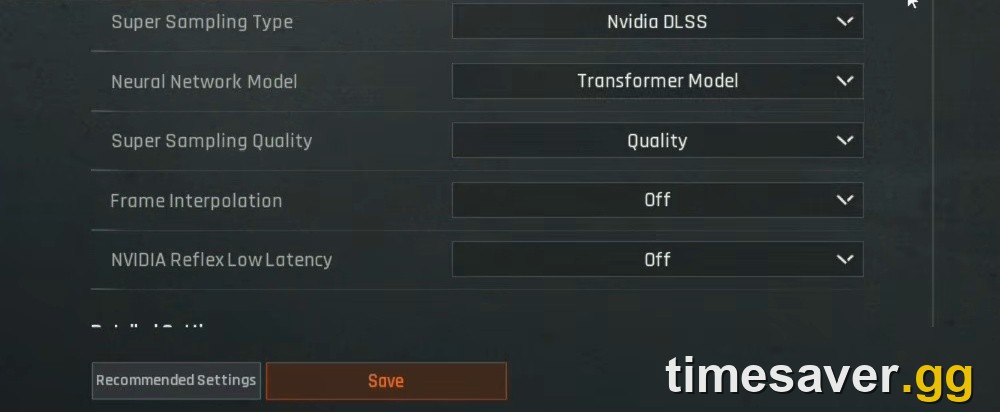
This guide goes tab by tab through the current Season 7: Utopia client (live since September 16, 2026). Every option is listed by the name it has in-game, checked against footage of the English client from a CoscriptFPS settings video uploaded October 18, 2026. The screenshots below are crops of that footage, so the values shown are his, not our recommendations. You get what to set for frame rate, what to set for visibility, and how ABI's Aim Sensitivity actually works.
Quick answer: Use your monitor's native Screen Resolution and Fullscreen. Set Super Sampling Type to DLSS (NVIDIA RTX) or FSR (everything else) at Quality, and turn NVIDIA Reflex Low Latency on (supported NVIDIA GPUs). Set Max FPS a few frames under your refresh rate. Keep View Distance, Texture Quality and Scope Quality high. Drop Shadow, Effect, Vegetation, Light, Shader and Post-Processing Quality to Basic or Performance. Turn Firing Blur off and raise Sharpness a little. Then set Aim Sensitivity per scope magnification under Control → Global Control Settings.
Applies to: Arena Breakout: Infinite (PC, Steam appid 2073620), Season 7: Utopia, checked October 26, 2026. No settings-menu changes appear in the official patch notes posted between the September 15, 2026 Season 7 notes and the newest Steam announcement (October 20, 2026). This is not the separate mobile game Arena Breakout.
Where are the settings in Arena Breakout: Infinite?
Open the gear icon at the bottom-right of the lobby. The settings screen has six tabs, cycled with Q and E:
| Tab | What lives there |
|---|---|
| Game | Field of View, Default Zero Distance, HUD options, Firing Blur, Sharpen When Sedated, Focal Point, Hit Effect Color |
| Image | Resolution, Max FPS, upscaling (Super Sampling), Reflex, every quality slider, VRAM Usage meter |
| Sound | Volume channels, Spatial Audio, voice chat |
| Post-Processing | Graphics Style, Brightness, Saturation, Contrast, Sharpness |
| Control | Mouse and Aim Sensitivity, keybinds |
| Privacy | Account and privacy options, plus the Customer Service entry |
The Image tab has a Recommended Settings button next to Save. It is a good place to start on a new PC, but it balances looks against performance. It is not tuned for spotting players. Morefun has also added settings sharing. The Season 4 patch notes (January 8, 2026) say: "You can also share your settings via a share code." That is the share icon next to Save, and it lets you copy a friend's whole setup.
Sound gets its own article: see our Arena Breakout: Infinite audio settings guide. It covers Spatial Audio and hearing footsteps.
What are the best Image (graphics) settings for FPS and visibility?
The Image tab has two parts. The top half covers display and upscaling. The Detailed Settings block below it has the individual quality sliders. Most sliders use the same quality steps: Basic, Performance, Balanced, Quality, Maximum. If you change any slider, Overall Quality switches to Custom.
Display and upscaling (top of the Image tab)
| Setting | Our pick | Why |
|---|---|---|
| Aspect Ratio / Screen Resolution | Native (e.g. 16:9, 1920×1080) | Anything below native looks soft. Use the upscaler to reconstruct a native-resolution image instead |
| Screen Mode | Fullscreen | Usually gives the lowest input lag. Borderless is fine if you alt-tab a lot |
| Overall Quality | Custom | You set each slider below |
| Max FPS | 3–5 under your refresh rate (e.g. 140 on 144 Hz) | Keeps frame times steady with G-SYNC/FreeSync |
| Vertical sync | Off | Adds input lag. Use the Max FPS cap instead |
| Main-menu frame cap toggle | On | Stops the lobby from running your GPU at full load for no reason |
| Variable Rate Rendering | On if you're GPU-limited | In-game text: "Differentiates the shader quality requirements of different parts of a scene, increasing shader performance with a very slight impact on visuals." |
| Super Sampling Type | Nvidia DLSS on RTX cards, FSR otherwise | This is your biggest FPS lever. Older guides call it "Resolution Sampling Type" |
| Neural Network Model | Transformer Model (DLSS) | The newer DLSS model. It holds detail on distant players better |
| Super Sampling Quality | Quality (Balanced if you need frames) | Avoid the lowest modes in firefights. Distant heads turn to mush |
| Frame Interpolation | Off for PvP | Generated frames smooth out motion but don't respond to input. Use it only for PvE or Zombie Endless |
| NVIDIA Reflex Low Latency | On (supported NVIDIA GPUs) | Lowers system latency, and there's no visual cost |
NVIDIA announced the partnership at Gamescom 2024: "Arena Breakout: Infinite is partnering with NVIDIA to add support for DLSS 3 and Reflex." That is why the RTX options are on the menu. If DLSS is missing on an RTX card, update the GPU driver first.
Some players turn upscaling off completely. One long-running r/ArenaBreakoutInfinite thread opens with "First of all, disable DLSS/FSR/whatever. Set it to 'close'." (Close is the old name for Off.) Native with no upscaler gives the sharpest image if your GPU can hold your target frame rate. On a mid-range card, DLSS/FSR Quality plus a little Sharpness is the better trade.

Detailed Settings: which quality sliders matter?
Here is every slider in the Detailed Settings block, with our pick for a competitive, visibility-first setup on a mid-range PC (around the RTX 2060 / RX 6600 recommended spec). These are suggested starting points, not benchmarked results: test each change on your own hardware.
| Setting | Visibility pick | Notes |
|---|---|---|
| View Distance | Balanced–Quality | Controls how far detail and objects render. Too low and distant cover pops in or out. It can cost CPU time too |
| Shadow Quality | Performance or Basic | Lower shadows mean fewer dark corners for players to hide in, and big FPS savings |
| Resolution | Quality | The render-resolution option in Detailed Settings. Low values blur everything |
| Post-Processing Quality | Basic–Performance | See below. Heavy, with little tactical benefit |
| Texture Quality | Quality (8 GB+ VRAM) | Mostly costs VRAM, not FPS. Drop it only if the VRAM bar is full |
| Effect Quality | Basic | Less smoke and particle clutter in fights |
| Vegetation Quality | Basic | Thinner foliage. Helps most on Farm and Valley |
| Shader Quality | Basic | FPS gain, little visual loss in play |
| Light Quality | Basic–Performance | Indoor lighting is a common cause of frame drops |
| World Detail Quality | Basic | Clutter and small world objects |
| Scope Quality | Quality | How the picture inside your optic is rendered. Don't save frames here as a sniper or DMR user |
| Terrain Surface Subdivision | Off | Extra terrain geometry costs frames and adds nothing tactical |
The in-game text for Post-Processing Quality explains why it is the first heavy setting to cut: "Adjusts the quality of post-processing effects such as depth of field, bloom, tone mapping, and screen space ambient occlusion (SSAO). This setting may have a significant impact on image quality and frame rate." Bloom and depth of field make bright windows and long sightlines harder to read.
Watch the VRAM Usage meter on the right of the Image tab while you change settings. It splits usage into Arena Breakout: Infinite and Other Apps. Morefun added it in Season 4 alongside the settings-menu rework. If the bar runs into the marker, lower Texture Quality before anything else. Running out of VRAM is a likely cause of the "smooth at raid start, stutters later" pattern players report.
Ray tracing: the Season 4 notes added "a ray tracing toggle." Ray tracing is one of the most expensive options in any game, and frame rate matters more than lighting in PvP. Leave it off unless you have plenty of performance to spare.
What should I change in the Game tab?
The Game tab is where a few settings that affect what you can see are hidden:
- Field of View: a slider. Higher FOV shows more of the edges of the screen but makes distant targets smaller. 90–100 is a common competitive range. Season 6 reworked aiming so that, in the official notes' words, "The FOV seen by the character in ADS will align better with the third-person presentation," and "FOV direction will no longer shift when entering ADS." A high hip-fire FOV no longer throws your aim off when you scope in the way it did before June 2026.
- Firing Blur: Off. It blurs your view while you shoot. Turning it off is pure upside.
- Sharpen When Sedated: On. This is the Season 4 "auto-sharpening toggle for the sedated effect." It keeps the image readable while a painkiller or sedation effect is running.
- Focal Point: the small dot at the centre of the screen. It helps some players with hip-fire. Turn it off if you find it distracting.
- Hit Effect Color: Season 4 added custom hit-marker colours. Pick one that stands out against snow on Airport and greenery on Farm.
- Border Brightness Settings: according to player testing, this sets how bright the highlight outline on lootable items is. High makes loot easier to spot in dark rooms, which is useful for fast looting.
- Default Zero Distance: your starting zero for weapons that allow it. Leave it at default unless you play long-range builds. You can still adjust zero in raid with Page Up / Page Down.
What are the best Post-Processing settings?
The Post-Processing tab has a Graphics Style dropdown ("Select a preset graphics style.") with a live preview, plus four sliders: Brightness, Saturation, Contrast and Sharpness. Changing any slider switches Graphics Style to Custom.
For visibility:
- Brightness: leave it near default (1.00). Raise it only if night raids are unreadable on your monitor. Pushing it far flattens shadows into grey.
- Saturation: a small bump above default helps players stand out against greenery. CoscriptFPS ran 1.31 in his settings breakdown uploaded October 18, 2026.
- Contrast: keep it low to moderate. Too much contrast crushes dark doorways. The same creator ran 0.50.
- Sharpness: this is the fix for DLSS/FSR softness. The creator above used 3. Go higher if you upscale at Balanced, but stop before edges start to shimmer.
Treat those numbers as a starting point, not a rule. Monitors differ, so tune with the preview image and then check in a real raid at dusk.
Season 7 also fixed a lighting bug. The September 15, 2026 notes "corrected the overexposure that occurred when a tactical flashlight was used to illuminate a surface at close range on high graphics settings." If you avoided high Light Quality because flashlights washed out the screen, that problem is gone. The Season 7 flashlight nerf also makes being flashed less punishing.
What are the best sensitivity settings in Arena Breakout: Infinite?

Sensitivity is under Control → Global Control Settings. The Control tab also has the sub-tabs Keybind Settings, Character Controls, Weapons & equipment, Quick Bars and Item Controls, and Moderate.
The two sliders that matter are:
- Mouse Sensitivity: hip-fire and general look.
- Aim Sensitivity: in the game's own words, it "Controls both the horizontal and vertical sensitivity of the mouse when you're aiming. This option only takes effect during raids. You can set different sensitivities for different sight magnifications in the sub-settings."
Expand Aim Sensitivity to get one slider per magnification. The community wiki lists 1x, 1.6x, 2x, 3x, 3.5x, 4x, 6x, 7x and 10x, each adjustable from 0.10 to 4.00 (community-documented; the in-game sliders are the final word). Below those you'll find Free Camera Sensitivity (free look), Double-Click Interval, Invert X-Axis / Y-Axis, Quick Throw, Close Backpack When Hit and Switch Weapon After Throwing.
How to set it up:
- Find your hip-fire speed first. Lower sensitivity makes holding tight angles easier. Raise it if you lose close-range fights because you can't turn fast enough. If you come from another tactical shooter, start from the cm/360 you already use there.
- Set 1x Aim Sensitivity so red-dot and iron-sight tracking feels like hip-fire, slightly slower. The October 18 setup above runs Mouse 0.40 and Aim 0.26.
- Scale the magnified sights down. A 6x should move far less per centimetre than a 1x, or the reticle jumps past the target.
- Watch the dual-optic gotcha. On 1x/6x combo sights, players report that the whole optic seems to use the 1x value, so the 6x side feels far too fast. One r/ArenaBreakoutInfinite thread put it this way: "the whole scope seems to scale with the 1x sensitivity." If your combo sight feels twitchy, tune with the specific optic mounted rather than trusting the 6x slider.
- Test in a raid. The in-game text says Aim Sensitivity "only takes effect during raids," so judge your scope values in a real raid.
A 1:1 conversion from other shooters rarely matches exactly. A converter gets you close, then adjust by hand. A thread posted on October 25, 2026 about "1:1 hipfire / ADS / scope sensitivity problems" shows how often this comes up. Also remember the Season 7 M290 stun grenade: officially it "reduces mouse sensitivity for units within range." If your aim suddenly turns to sludge after a bang, that's the effect, not your settings.
Controllers are not an option. Morefun's official FAQ says "Controllers are currently not supported." See our Arena Breakout: Infinite on PS5 and Xbox explainer for the full platform picture.
How do I get more FPS outside the game?
Arena Breakout: Infinite is a DirectX 12 game. Steam lists a minimum of an Intel Core i5-7500 / AMD Ryzen 5 1400, GTX 960 2 GB / RX 5500 / Arc A380 and 12 GB RAM. The recommended spec is an i7-9700 / Ryzen 5 3600X, RTX 2060 / RX 6600 and 16 GB RAM, with 70 GB of storage. Outside the game:
- Install on an SSD. Streaming 70 GB of assets from a hard drive causes stutter no setting can fix.
- Update GPU drivers and restart. Driver updates are also the most common fix for missing DLSS.
- Use a wired connection. Rubber-banding is network lag, and no graphics setting fixes it.
- Close overlays and recorders you don't need. Don't swap game DLLs or inject tools: ABI uses the kernel-level Anti-Cheat Expert (ACE) system, and modified files can get flagged.
- If the game shows a DMA Guard error at launch, that's a BIOS setting, not a graphics one. See our DMA Guard / VT-d / IOMMU fix.
Our recommended visibility preset (copy this)
| Category | Setting |
|---|---|
| Display | Native resolution · Fullscreen · Max FPS = refresh − 3 · Vertical sync off |
| Upscaling | DLSS (Transformer Model) or FSR · Quality · Frame Interpolation off · Reflex on |
| High | View Distance · Resolution · Texture Quality (if VRAM allows) · Scope Quality |
| Low / Basic | Shadow · Effect · Vegetation · Shader · Light · World Detail · Post-Processing |
| Off | Terrain Surface Subdivision · ray tracing · Firing Blur |
| Post-Processing | Brightness ~1.0 · Saturation slightly up · Contrast low · Sharpness 2–4 |
| Control | Aim Sensitivity tuned per magnification · test combo optics separately |
Once it plays well, use the settings share code to save it. Then come back after every season update, because Morefun regularly adds and renames options (Season 4 alone added several new settings).
FAQ
What are the best graphics settings for visibility in Arena Breakout: Infinite? Keep View Distance, Resolution, Texture and Scope Quality high. Set Shadow, Vegetation, Effect, Light and Post-Processing Quality low. Turn Firing Blur off and add a little Sharpness. Lower shadows and thinner foliage usually leave players fewer places to hide, but check the result on your own monitor.
Does Arena Breakout: Infinite support DLSS and FSR? Yes. The Image tab's Super Sampling Type offers Nvidia DLSS (with a Transformer Model option) and FSR, and NVIDIA confirmed DLSS 3 and Reflex support at Gamescom 2024. Frame Interpolation is a separate dropdown. Leave it off for PvP.
Why can't I find "Resolution Sampling Type"? That was the option's name in the 2024–2025 builds. The current client calls it Super Sampling Type, followed by Super Sampling Quality.
Should I turn upscaling off for the sharpest image? If your GPU can hold your refresh rate at native resolution, yes: native has the least blur. Otherwise DLSS/FSR Quality plus Sharpness 2–4 is the better trade, because steady frames help more than a slightly crisper image.
How do I set different sensitivity for each scope? Go to Control → Global Control Settings and expand Aim Sensitivity. Each sight magnification has its own slider. Aim Sensitivity only applies in raids. Combo 1x/6x optics can behave as if they use the 1x value, so tune those with the sight mounted.
Can I copy a pro's settings? Yes. Since Season 4 you can share settings via a share code from the settings screen. Just remember someone else's monitor and GPU aren't yours, so re-check Brightness and the VRAM bar.