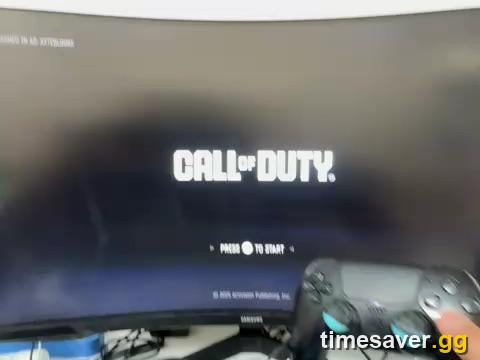
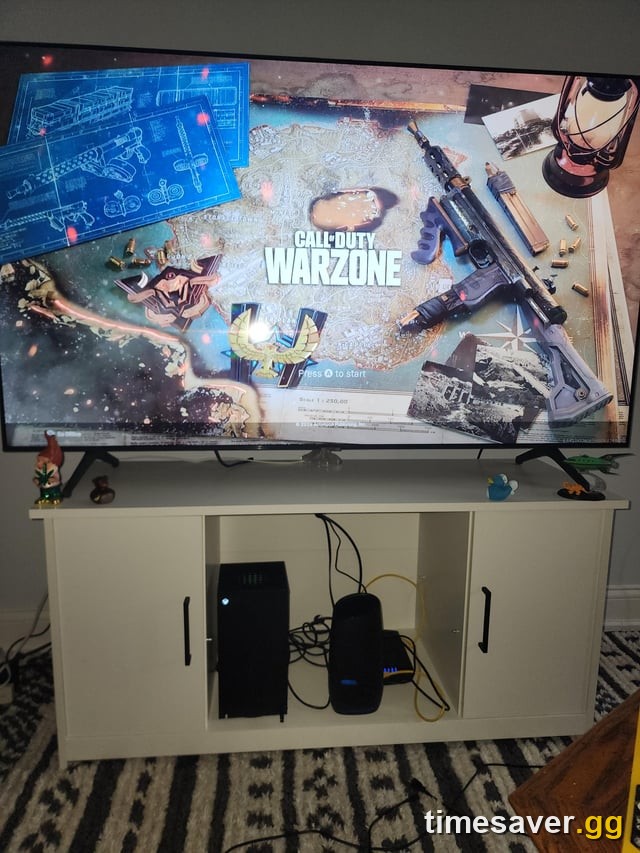
You boot Call of Duty on your PS5, the intro plays, and you land on the "Press X to Start" splash — but pressing X (or any button) does absolutely nothing. The controller isn't broken: the PS button still opens the dashboard instantly, and every button works fine in the PlayStation home menu. The game just won't take your input.
Quick answer: This is almost never a controller problem. On PS5, "Press X to Start" is the point where Call of Duty silently completes a PlayStation Network sign-in and license handshake in the background. If PSN has quietly signed you out, is waiting on new Terms of Service, or the game's license/cache is stale, that handshake stalls — so your button press is ignored. The fastest fix for most players: make sure you're actually signed in to PSN (open the PS5 dashboard, confirm your profile is online, accept any pending PSN agreement), then Restore Licenses and relaunch. Below is the full order to work through, from the 30-second fix to the nuclear option.
Call of Duty - Bot Lobby
Get bot lobby in 10 minutes
Why "Press X to Start" stops responding (the real cause)
The splash screen is a trap for troubleshooting because it looks like a simple button prompt. It isn't. Before Call of Duty lets you into the main menu, it has to:
- Confirm your PlayStation Network account is signed in and authorized.
- Validate the game license on your console (do you own/have access to this title).
- Load a small startup cache and profile handshake.
If any of those three hang, the game parks you on "Press X to Start" and quietly discards your input — which is exactly why the controller feels dead only on that screen but works everywhere else. On r/CODWarzone this week, players hit the exact symptom: "Press X to Start does nothing on PS5, controller works fine in the PS menu." The first thing the community asked back was the right question — "Are you signed in to PSN?" — and for the majority, that's the whole fix.
Three hard facts worth knowing before you start:
- The controller is not the problem if the PS button and home menu work normally. Don't waste time re-pairing or buying a new pad.
- A silent PSN sign-out is the #1 cause. PS5 can drop your PSN session after a system update, a Rest Mode cycle, or a network blip — without any visible warning on the dashboard.
- A pending PSN Terms of Service / age agreement will hard-block the handshake. You have to log into PSN once and accept it before the game will move past the splash.
Fix 1 — Confirm you're signed in to PSN (the 30-second fix)
This clears the issue for most players, so do it first.
- Press the PS button to open the dashboard.
- Go to your profile (top-right) and confirm it says you're online / signed in to PlayStation Network. If it shows "Signed out" or "Offline," sign back in.
- If PSN prompts you to accept new Terms of Service or a user agreement, accept it — a pending agreement will silently block Call of Duty at the splash.
- Return to the game and press X.
If the profile looked signed in but the game still won't respond, fully sign out of PSN and back in: Settings → Users and Accounts → Sign Out, then sign back in. This forces a fresh authentication token, which is what the game is actually waiting on.
One Reddit user summed up the resolution perfectly: "Fixed. PSN was signed out. Had to accept new terms by logging into PSN." If you skip this step, every other fix below is a coin flip.
Fix 2 — Restore Licenses (Activision's official one-minute fix)
If PSN is confirmed online and you're still stuck, the game license handshake is the likely culprit. This is Activision's own recommended fix for CoD ownership/startup errors on PlayStation:
- On the PS5 home screen, highlight the Call of Duty tile.
- Press the Options button on your controller.
- Select Restore Licenses (Settings → Users and Accounts → Other → Restore Licenses also works).
- Wait for it to finish, then fully close and relaunch Call of Duty.
Restore Licenses re-validates every entitlement on your account and clears a stale or half-applied license — the same fix that resolves the related "You don't own this game" error. It takes under a minute and doesn't touch your progress. (If you're seeing an ownership error instead of a frozen splash, follow our dedicated CoD "You Don't Own This Game" fix.)
Fix 3 — Fully power-cycle the PS5 (not Rest Mode)
A proper shutdown clears the console's temporary cache and kills any wedged startup process. Rest Mode does not do this — it keeps the same session alive, which is often part of the problem.
- Hold the PS5 power button until it beeps twice and shuts down completely.
- Unplug the power cable for at least 60 seconds (this drains residual power and clears the cache).
- Plug back in, boot up, sign in to PSN, then launch the game.
The full unplug matters. Activision and PlayStation troubleshooting both call for a complete power-down — a bad update loop or stuck handshake frequently survives a normal restart but dies on a cold boot.
Fix 4 — Clear Cache and Rebuild Database (PS5 Safe Mode)
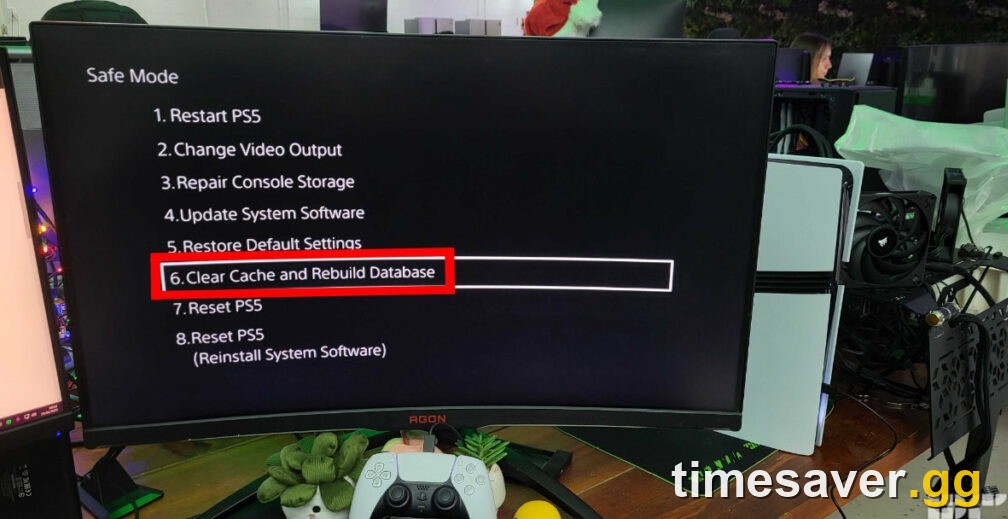
Still frozen? Rebuild the PS5 database. This is Activision's official step for console startup issues and it does not delete your games or saves — it just reorganizes system data and clears the cache.
- Fully shut down the PS5 (hold power until the second beep — do not use Rest Mode).
- Hold the power button again until you hear a second beep (about 7 seconds in) to enter Safe Mode.
- Connect your controller with the USB cable and press the PS button (Safe Mode requires a wired controller).
- Select Clear Cache and Rebuild Database → Clear System Software Cache first, then run Rebuild Database if needed.
- Restart and relaunch Call of Duty.
Per Activision's support page, clearing the system software cache "should take about 7 seconds"; a full Rebuild Database can take several minutes depending on how much is installed. Let it finish — don't power off mid-rebuild.
Fix 5 — Update the game and system software
An out-of-sync client can stall at the splash while it waits on a check it can't complete. Confirm both are current:
- Game: highlight the CoD tile → Options → Check for Update. Season 5 Reloaded is the current Black Ops 7 season (live since late August 2026), so make sure you're on the latest patch.
- System: Settings → System → System Software → System Software Update and Settings → Update System Software.
If an update is stuck at 0% or looping, run the power-cycle in Fix 3 first, then retry the download.
Call of Duty - Ranked Boost
Get ranked boost in 10 minutes
Fix 6 — Check for a real outage before you reinstall
Before the nuclear option, make sure it's not a server-side problem you can't fix locally:
- Check the Call of Duty online services / server status page for Black Ops 7 and Warzone.
- Check PlayStation Network status for a PSN sign-in outage — if PSN auth is down, the splash handshake can't complete no matter what you do.
If either is showing issues, the "fix" is to wait — reinstalling won't help, and you'll just burn a 100+ GB download for nothing.
Fix 7 — Reinstall Call of Duty (last resort)
If PSN is confirmed up, licenses are restored, the cache is cleared, and it's still stuck, the local install is corrupt. This is the last resort because of the download size:
- Delete the Call of Duty app (and its packs) from your PS5 storage.
- Reinstall from your library or disc.
- Sign in to PSN before launching, and let the first-run shaders/updates finish completely.
Your progression is tied to your Activision/PSN account, not the local files, so a reinstall won't lose your unlocks, camos, or Battle Pass progress.
Skip the grind once you're back in
Losing a night to a frozen splash screen is bad enough — losing your weekend to the camo and rank grind on top of it is worse. Once Call of Duty finally loads, if you'd rather spend your playtime winning than grinding:
Get back to the fun part faster with trusted, hand-done Black Ops 7 boosting:
- CoD Camo Unlocks (BO7) — mastery camos, done fast and secure.
- CoD Account & Weapon Leveling — skip the XP grind, handled by pro players.
- CoD Bot Lobbies — easy lobbies to level up and pad your stats fast.
- All Call of Duty services — the full lineup across BO7, Warzone and MW.
Related fixes
If your problem is close but not exactly this splash freeze or a HUENEME-NEGEV networking error, these sibling guides cover the neighboring errors:
- CoD "You Are Not Signed In to a Profile" / COD HQ Not Loading fix — the profile/sign-in variant.
- Black Ops 7 & Warzone Stuck on Loading Screen or Freezing fix — if you get past the splash but freeze loading into a match.
- Black Ops 7 Black Screen on Launch After the Update fix — for a black screen instead of the splash.
- CoD "You Don't Own This Game" — Restore License fix — if it's an ownership error, not a frozen splash.
FAQ
Why does "Press X to Start" do nothing on my PS5 when the controller works everywhere else? Because the splash screen is where Call of Duty runs a background PSN sign-in and license check. Your button press is ignored while that handshake is stalled — usually because PSN quietly signed you out or is waiting on a new Terms of Service agreement. The controller is fine; the game just isn't accepting input yet. Sign in to PSN (accept any pending agreement), then Restore Licenses.
Is this a controller problem — do I need a new controller? No. If the PS button opens the dashboard and every button works in the PS5 home menu, the controller is working normally. Re-pairing or replacing it won't help. The freeze is a software/sign-in handshake issue on the game side, not a hardware fault.
What's the single fastest fix? Confirm you're signed in to PlayStation Network. Open the dashboard, check that your profile shows "online," and accept any pending PSN Terms of Service prompt. A silent PSN sign-out is the most common cause and this resolves it in about 30 seconds. If that doesn't do it, Restore Licenses is the next fastest.
Will Restore Licenses, clearing the cache, or reinstalling delete my progress? No. Restore Licenses only re-validates ownership, and Clear Cache and Rebuild Database only reorganizes PS5 system data — neither touches your saves. Even a full reinstall is safe: your Black Ops 7 progression, camos and Battle Pass are stored on your Activision/PSN account, not the local files.
Does this affect Xbox and PC too? The exact "Press X to Start" splash freeze is most reported on PS5, but the root causes translate. On Xbox, sign in to your account, clear the local cache (hold power 10 seconds for a full shutdown, unplug 30 seconds), and check for updates. On PC, confirm you're signed in to Battle.net/Steam, run a file scan/repair, and verify the CoD services aren't down.
How do I know if it's an outage instead of my console? Check the Call of Duty online services status page and PlayStation Network status. If PSN sign-in is down or CoD servers are having issues, the splash handshake can't complete no matter what you do — the only fix is to wait it out. Don't reinstall during an outage.