Finding the right Black Ops 7 graphics settings is important for balancing between frame rate and clear visibility. Our goal is to achieve maximum performance to keep FPS high, while ensuring you can easily spot enemies without visual distractions. By reducing the load on your GPU and VRAM, these adjustments ensure the smoothest possible image. We'll tweak everything from resolution to field of view to minimize latency.
Display and Camera
Refresh Rate, Window Mode and V-Sync
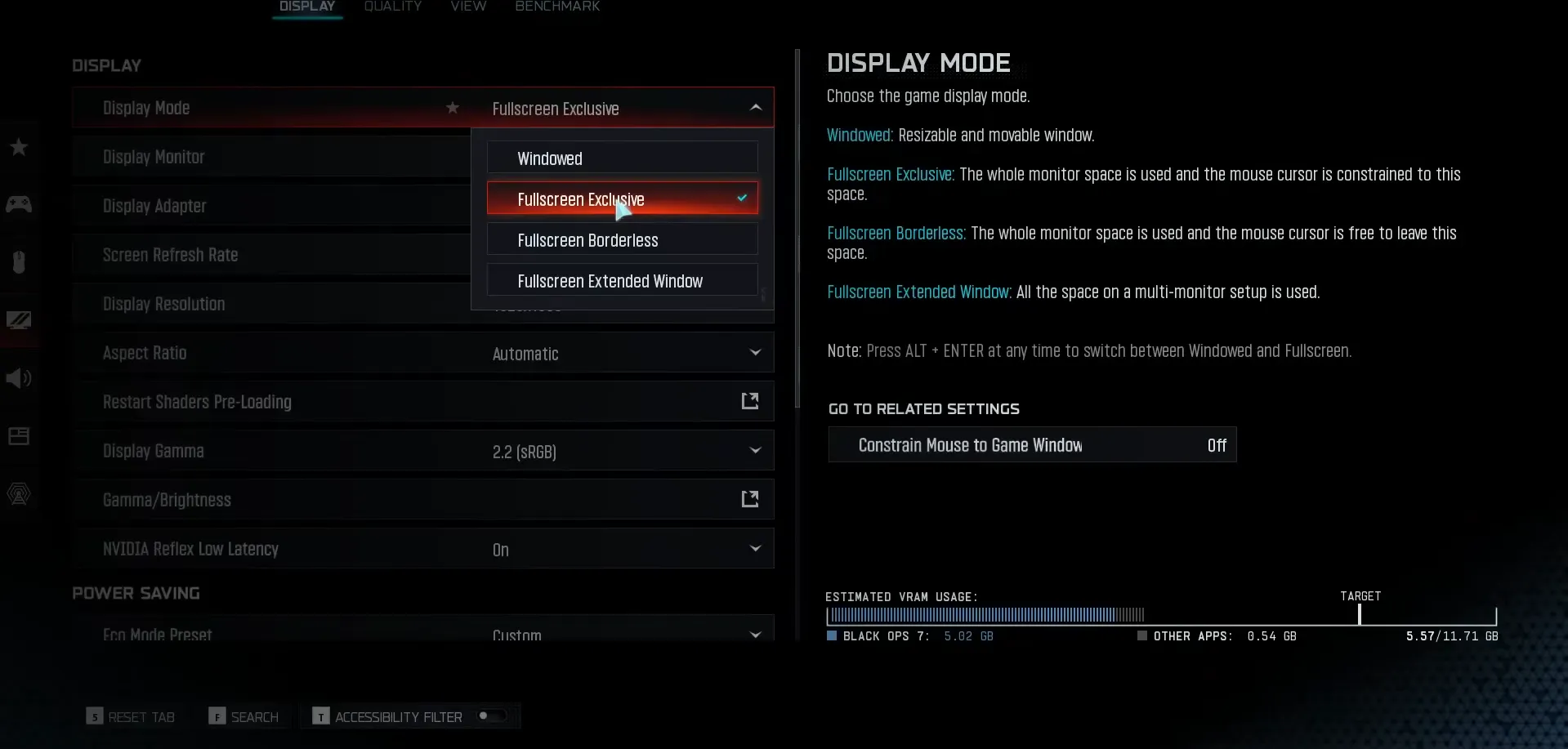
The correct display mode ensures your hardware communicates directly with the screen without operating system interference. This is critical for minimizing input lag.
- Display Mode: Select Exclusive Fullscreen. Borderless modes often introduce slight input latency and inconsistent frame pacing.
- Refresh Rate: Lock this to your monitor's maximum native Hz (e.g., 144Hz or 240Hz). Running lower than native creates a choppy image.
- V-Sync (Gameplay): Off. It adds significant input lag. Use G-Sync or FreeSync only if screen tearing is unbearable.
- Custom Frame Rate Limit: Set a cap just below your monitor's max refresh rate (e.g., 141 FPS for a 144Hz screen). This keeps G-Sync active and prevents the GPU from maxing out unnecessarily in menus.
FOV and Camera Movement
Your Field of View determines how much tactical information you receive. A value between 100 and 120 is standard for competitive play. It expands your peripheral vision, letting you see threats from the side. Be aware that a wider FOV slightly increases rendering demand, so find a value that doesn't distort the image edges. Camera movement settings are equally important for maintaining a stable aim.
- First Person Camera Movement: Set to Least (50%).
- World Motion Blur: Off.
- Weapon Motion Blur: Off.
Upscaling and Sharpening
DLSS, FSR and Render Resolution
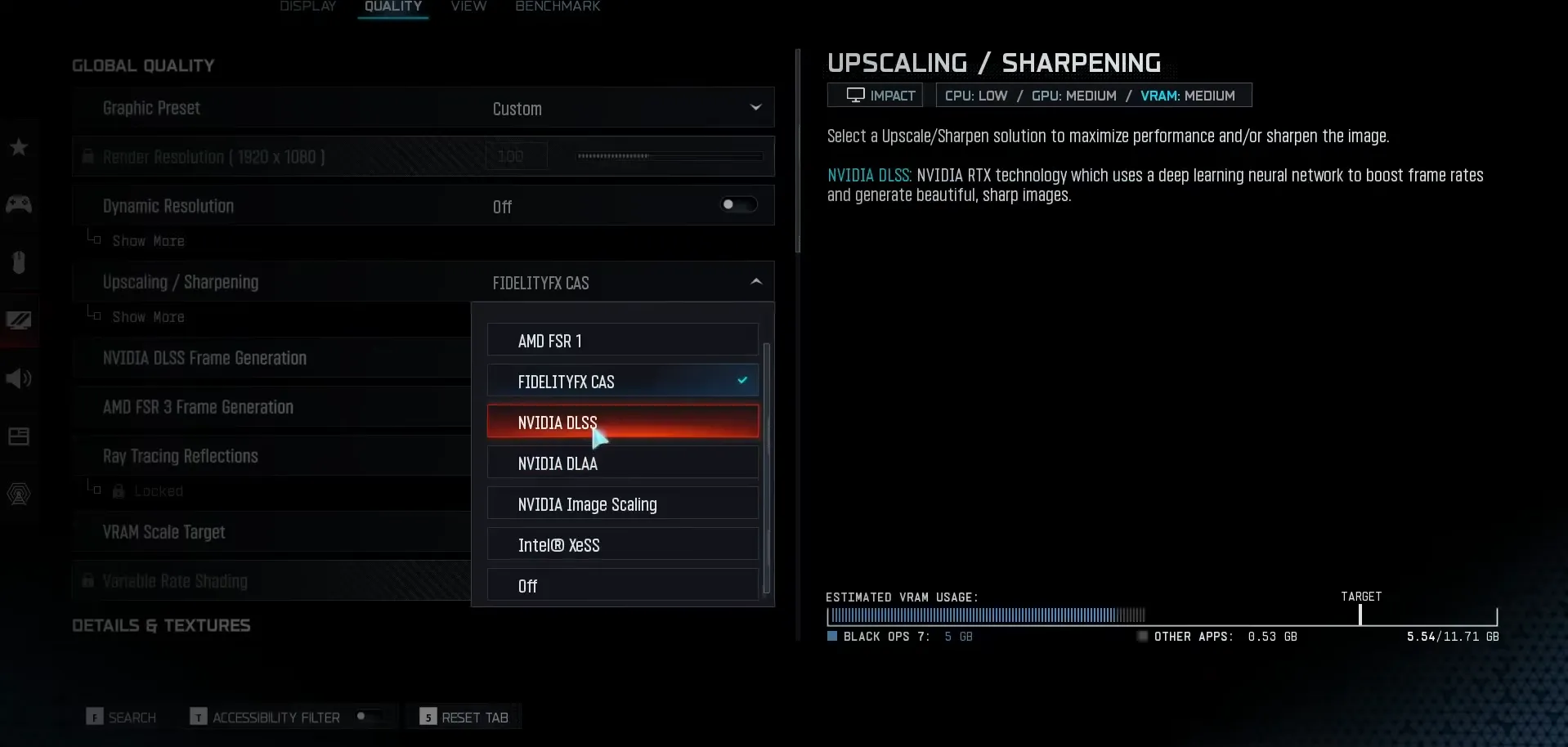
If your GPU struggles to maintain high FPS at native resolution, upscaling is the best solution.
- NVIDIA Users: Enable DLSS (Deep Learning Super Sampling) on Quality or Balanced mode.
- AMD Users: Enable FSR (FidelityFX Super Resolution) on Quality.
- Intel Users: Enable XeSS.
If avoiding AI upscaling, set Render Resolution to 100% (native pixel count). Lowering it to 90–95% provides a small manual FPS boost without artifacts.
FidelityFX CAS and Image Clarity
If native resolution runs well, FidelityFX CAS is superior for texture cleanup. Set CAS Strength between 50 and 70. Avoid cranking it to 100, as this introduces distracting white halos and excessive grain.
Quick BO7 Graphics Presets
| Feature | Low-end | Mid-range | High-end |
| Resolution | 1080p | 1080p / 1440p | Native 1440p / 4K |
| Textures | Low / Medium | Medium / High | High |
| Shadows | Low / Off | Medium | High |
| Effects | Off | Medium | Ultra |
| Upscaling | Performance / Balanced | Quality + CAS | Quality (if needed) |
| Motion Blur | Off | Off | Off |
BO7 Best Graphics Settings for Performance
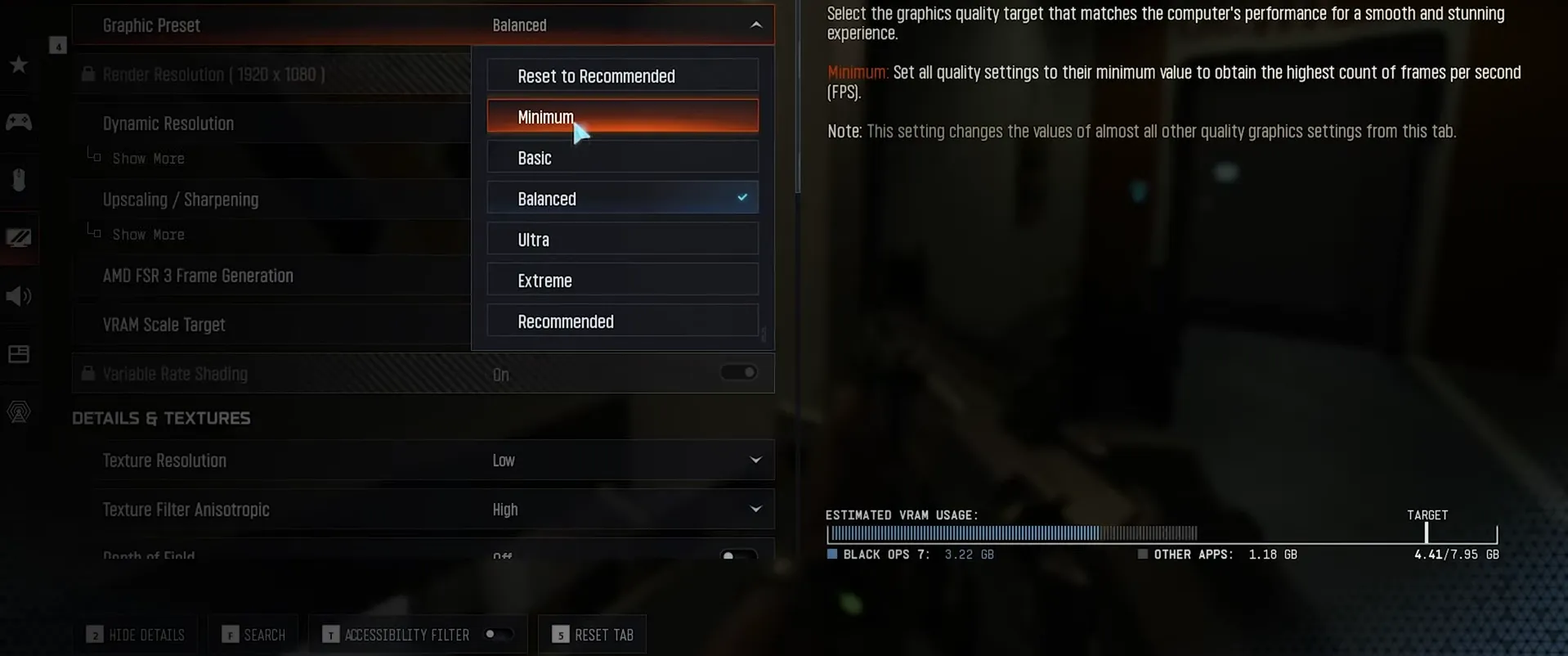
Textures, Streaming, and VRAM Usage
Texture Resolution impacts VRAM usage heavily but has a smaller impact on raw FPS if you have enough memory. We suggest sticking to Medium. Low textures can make surfaces look muddy, making it harder to distinguish an enemy from a wall.
Turn On-Demand Texture Streaming to Off. This feature downloads high-quality textures in the background while you play. On many connections, this background activity causes packet burst and lag spikes. Disabling it ensures that your internet connection's capacity is exclusively used for game-related information.
Shadows and Global Illumination
Shadows and lighting heavily impact FPS. Lower these settings first for a major performance boost.
- Shadow Map Resolution: Set to Low or Medium. You still need to see player shadows for tactical intel, but you don't need them to be too sharp.
- Ambient Occlusion: Set to Low or Off. This handles soft shadows in corners. Turning it off flattens the image slightly but frees up significant GPU power.
- Global Illumination: Set to Low.
BO7 Graphics Settings PC for Best Quality
High Textures and Terrain Details
If your VRAM allows, push Texture Resolution to High. Combine this with Texture Filter Anisotropic on High. Anisotropic filtering makes textures look sharp even when viewed at an angle, such as the ground stretching out ahead of you, and it costs very little performance. Then enable Terrain Detail and Tessellation on High. These settings add geometric complexity to the ground, rocks, and walls, making the world feel rugged and three-dimensional rather than flat.
Reflections, Water and Volumetrics
To make the environment pop, adjust the water and light interaction settings.
- Screen Space Reflections (SSR): High. This allows realistic reflections on wet surfaces and puddles.
- Water Caustics: On. This simulates the way light refracts through water.
- Volumetric Quality: Medium or High. This adds thickness to smoke and fog, creating a moody atmosphere.
Balancing Image Quality and Latency
Even with BO7 best graphics settings, you should maintain some discipline. While you can crank up resolution and particle effects, keep Motion Blur and Depth of Field disabled. This ensures that the high-fidelity image you are rendering remains clear during movement. Prioritize pixel count and texture quality over intrusive post-processing effects.
NVIDIA and AMD Specific Tips
NVIDIA Reflex and Driver Options
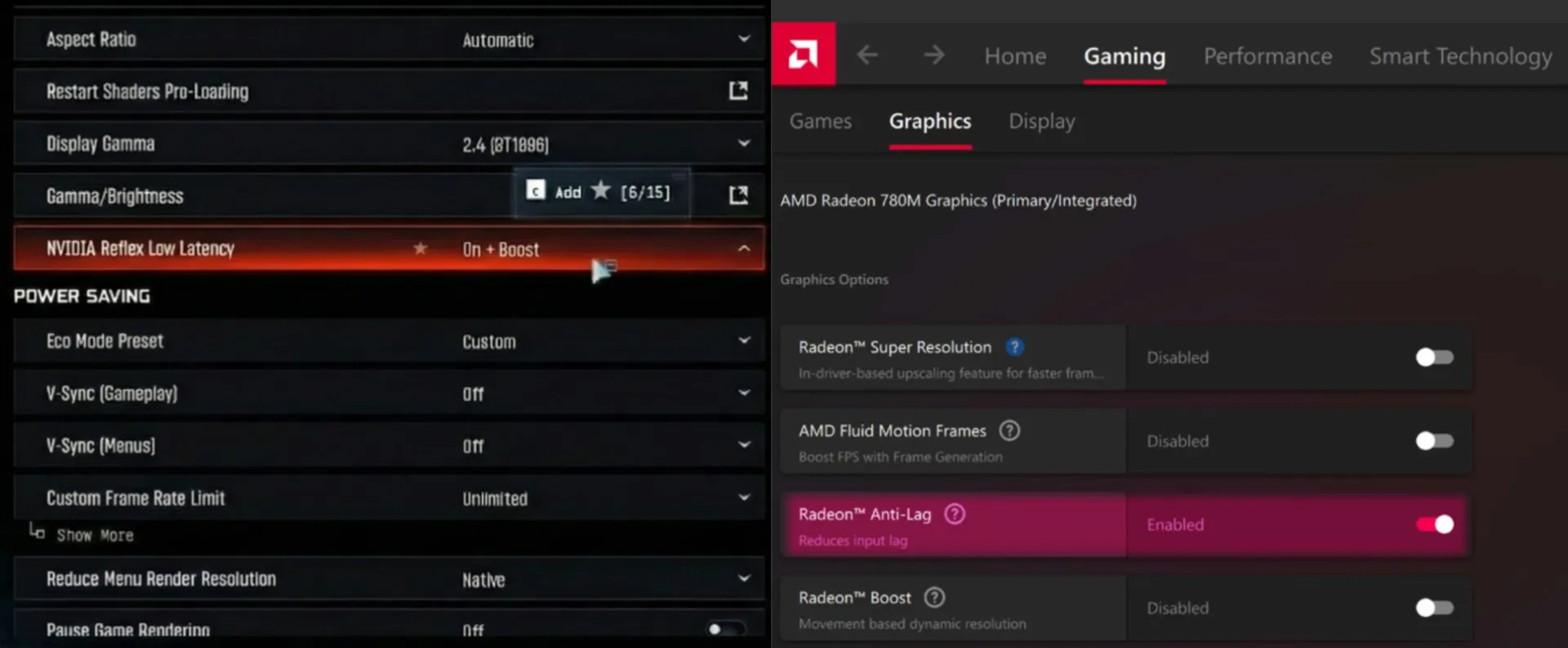
For the best latency reduction, NVIDIA users should set Reflex Low Latency to On + Boost. This critical setting instructs the game engine to actively reduce the CPU render queue, minimizing potential bottlenecks, especially during periods of high GPU load. Furthermore, within the NVIDIA Control Panel, it's essential to set the Power Management Mode to Prefer Maximum Performance. This prevents the GPU from throttling clock speeds during a match.
AMD Anti-Lag and Monitoring
AMD owners should enable Radeon Anti-Lag in the Adrenalin software suite. Anti-Lag works by dynamically adjusting the pace of the CPU work to ensure it doesn't get too far ahead of the GPU, significantly reducing overall input delay. Always use the in-game Telemetry tools to actively monitor key performance metrics like VRAM utilization, GPU temperature, and Packet Loss. If your VRAM utilization starts to approach 95% or higher, immediately lower texture resolution or other high-memory settings to prevent severe stuttering and frame drops that disrupt competitive time.
Check out our top Call of Duty: Black Ops 7 boosting services
 popular
from$5.90 CoD
Bot Lobby BO7
- Zero Ban Risk
- Self Play
- Best Price Guarantee
from$33.00 CoD
BO7 Campaign Boost
- Quick Boost Start
- No Bots/No Cheats
- Secure Login Only
from$2.99 CoD
BO7 KD Boost
- Handcrafted Boost
- High Win Rate
- Multi-Game Support
 leveling
from$0.38 CoD
BO7 Weapon Leveling
- Flexible Times
- Custom Requests
- Anonymous Play
Optimizing Your Operation
There is no universal configuration that works for every machine. Your optimal configuration will vary based on whether your focus is on competitive progression or experiencing the game's plot. Start with the "Performance" preset to establish a high frame rate baseline. From there, incrementally increase texture quality and anisotropic filtering until the game looks fine without dropping frames. Test your changes in a private lobby before you compete against others online.
FAQ
What are the Black Ops 7 best graphics settings on PC for high FPS and low latency?
For the best results, use Exclusive Fullscreen mode with V-Sync Off. Enable NVIDIA Reflex (On + Boost) or Radeon Anti-Lag. Use DLSS or FSR in Quality mode, keep Shadows on Low, and ensure Texture Resolution is set to Medium or High depending on your VRAM.
Which BO7 graphics settings should I lower first if the game stutters on my PC?
Start by lowering Texture Resolution and turning off On-Demand Texture Streaming to fix VRAM bottlenecks. Next, reduce Shadow Map Resolution and Volumetric Lighting, as these are the most demanding on the GPU.
Are there best graphics settings that work for both multiplayer and campaign in BO7?
A balanced approach works best. Keep Texture Resolution High and Anisotropic Filtering High for sharp visuals. However, always keep Motion Blur, World Blur, and Depth of Field set to Off to ensure you maintain clear visibility in multiplayer.